
POLYV Product Updates | Cloud Captions, Mini Program Playback and Web Studio Enhancements
POLYV’s August 2026 product update adds cloud-recognized real-time captions, Mini Program Picture-in-Picture, upgraded Web Studio controls, live trial viewing, digital human framing, aggregation-page, API, and callback improvements.
Update date: August 6, 2026
This release covers Live Management, Live Marketing, Web Studio, Viewing Pages, Video Creation, AI Applications, Feeds and Aggregation Pages, and API and callback capabilities. The items below correspond one-to-one with the complete source update list.
1. Live Management
1.1 Custom domains can be replaced from the backend
When a viewing-page custom domain is replaced, the original domain can remain in use while the new domain is verified, avoiding interruption to viewing-page access. Before verification is complete, the page shows both the currently active domain and the new domain in replacement. Each account supports one replacement domain in progress; teams can continue configuration or cancel the replacement.
1.2 H5 channel details add Cloud Distribution
When managing a channel on mobile, teams can open the Cloud Distribution page from H5 channel details to configure and control streaming to third-party platforms. The More menu now includes Cloud Distribution, supporting viewing, creating, editing, deleting, starting, and ending streams.
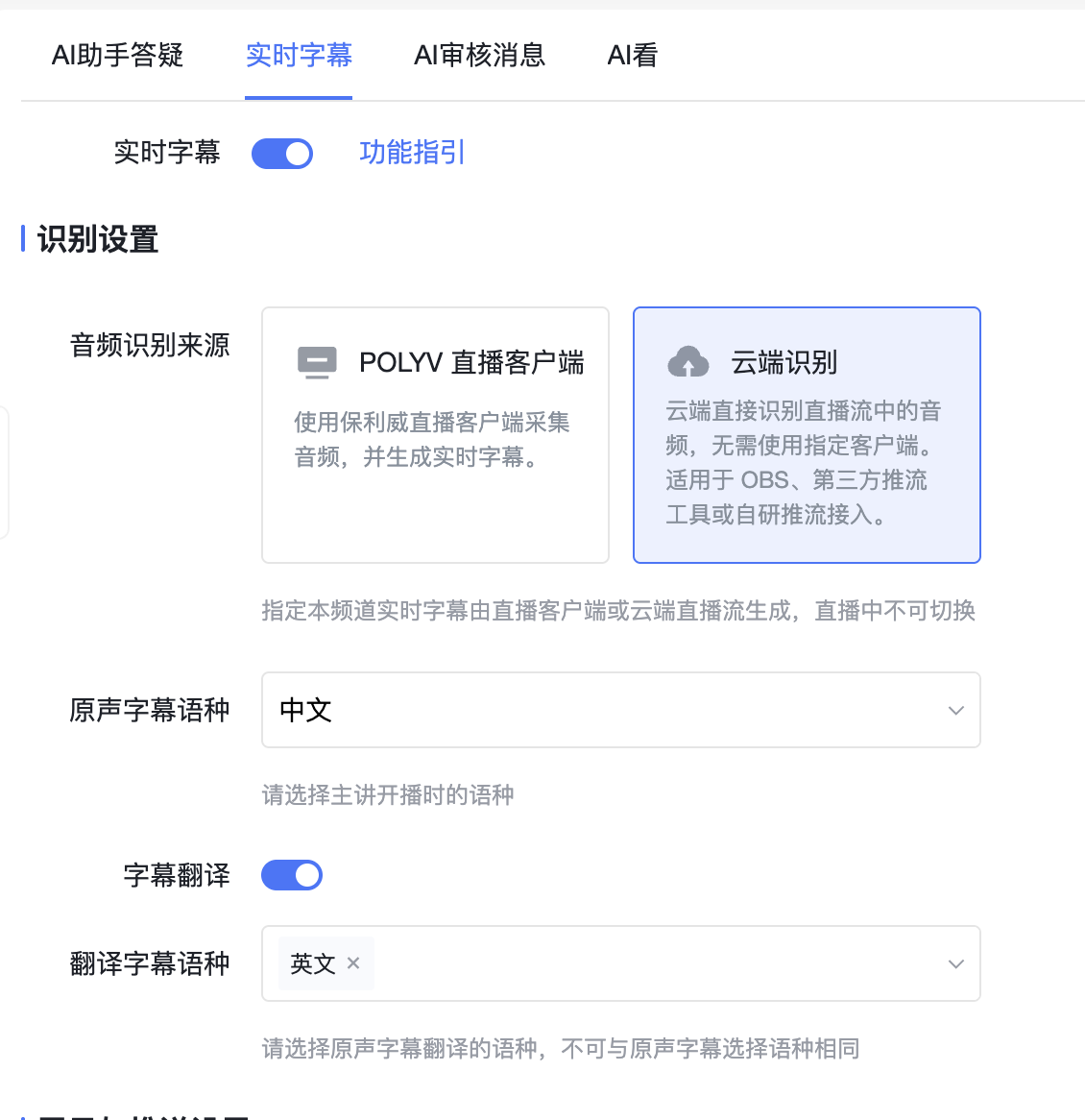
1.3 Real-time captions add Cloud Recognition mode
For scenarios using OBS or other third-party streaming tools, real-time captions can use Cloud Recognition mode, with captions and translations generated centrally in the cloud. Real-time captions support both Live Client mode and Cloud Recognition mode.
2. Live Marketing
2.1 Popup ads are available in live rooms
When configuring a marketing campaign, teams can place popup ads in selected live rooms and show event or business information on the viewing page. A popup-ad list is now available in channels: account administrators can create or edit ads in the current live room, while channel users can view them only. Popup ads can select multiple aggregation pages, feeds, and live rooms with the same delivery window; a destination link is optional. When a popup ad and an interactive popup are triggered together, the interactive popup is shown first.
3. Web Studio
3.1 The new Web Studio adds a presenter material library
When a material library is enabled and a channel is linked to a presenter, the Add Material menu shows a Material Library entry. Presenters can view, upload, and use video, image, and document assets; filter by asset name or channel ID; download, delete, or manage them in batches. The same presenter can reuse personal materials in other linked channels.
3.2 PPT page-turning interaction is improved
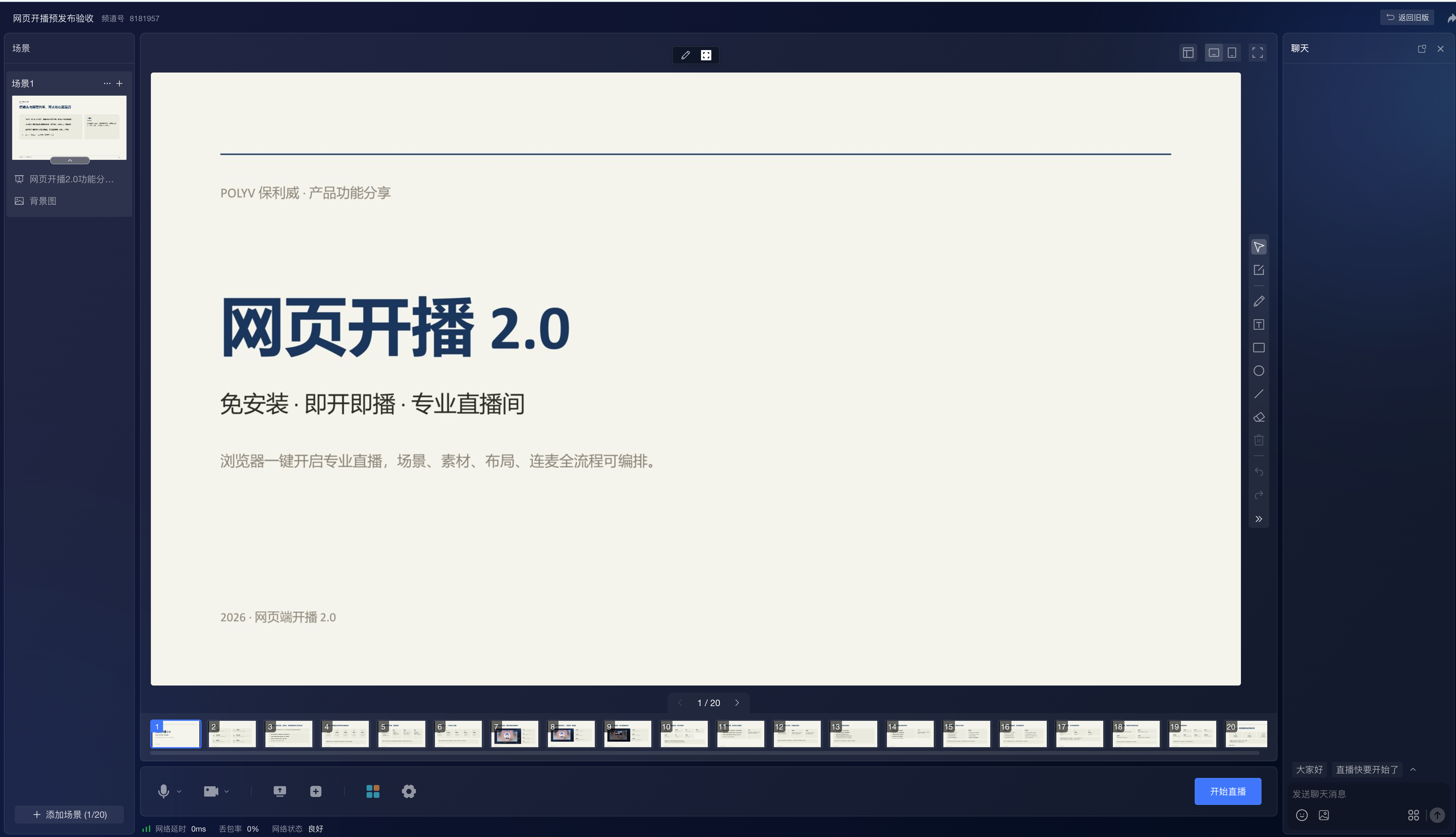
When presenting a PPT, speakers can browse and switch pages through a thumbnail preview area to control courseware progress. The selected PPT shows thumbnails and the current page. Speakers can use previous and next controls or click thumbnails, with horizontal scrolling for more pages. Guests receive the same preview navigation after the PPT is handed over.
3.3 Connected participants can show identity information
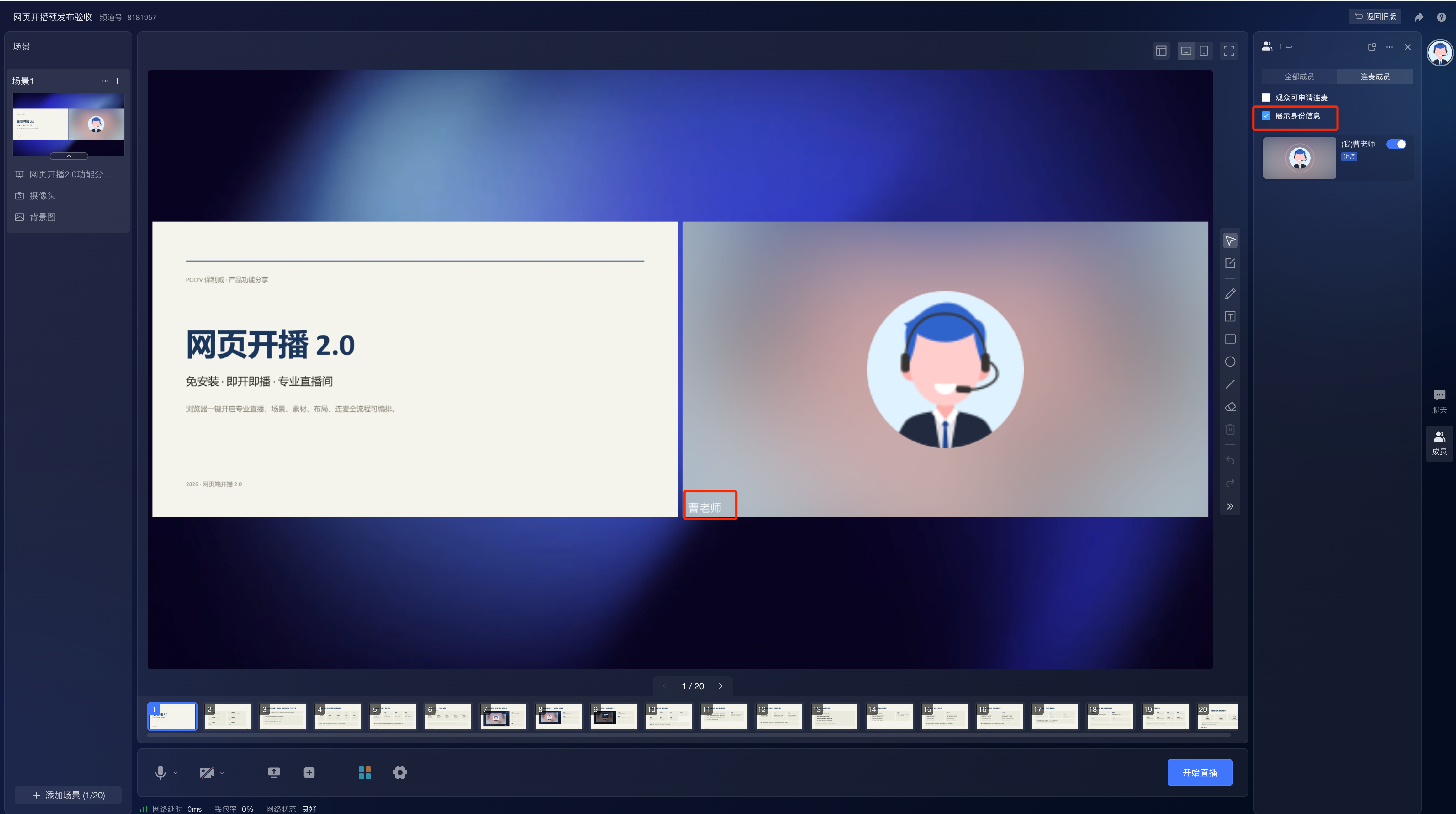
During co-hosting, the presenter can centrally control whether connected participants’ names are shown in the live image. The new Show Identity Information switch in the Connected Members area is off by default. When enabled, connected members display their live-room names; the display follows the current switch state as members join, leave, or change mic status.
4. Viewing Pages
4.1 Mini Program viewing pages support Picture-in-Picture playback
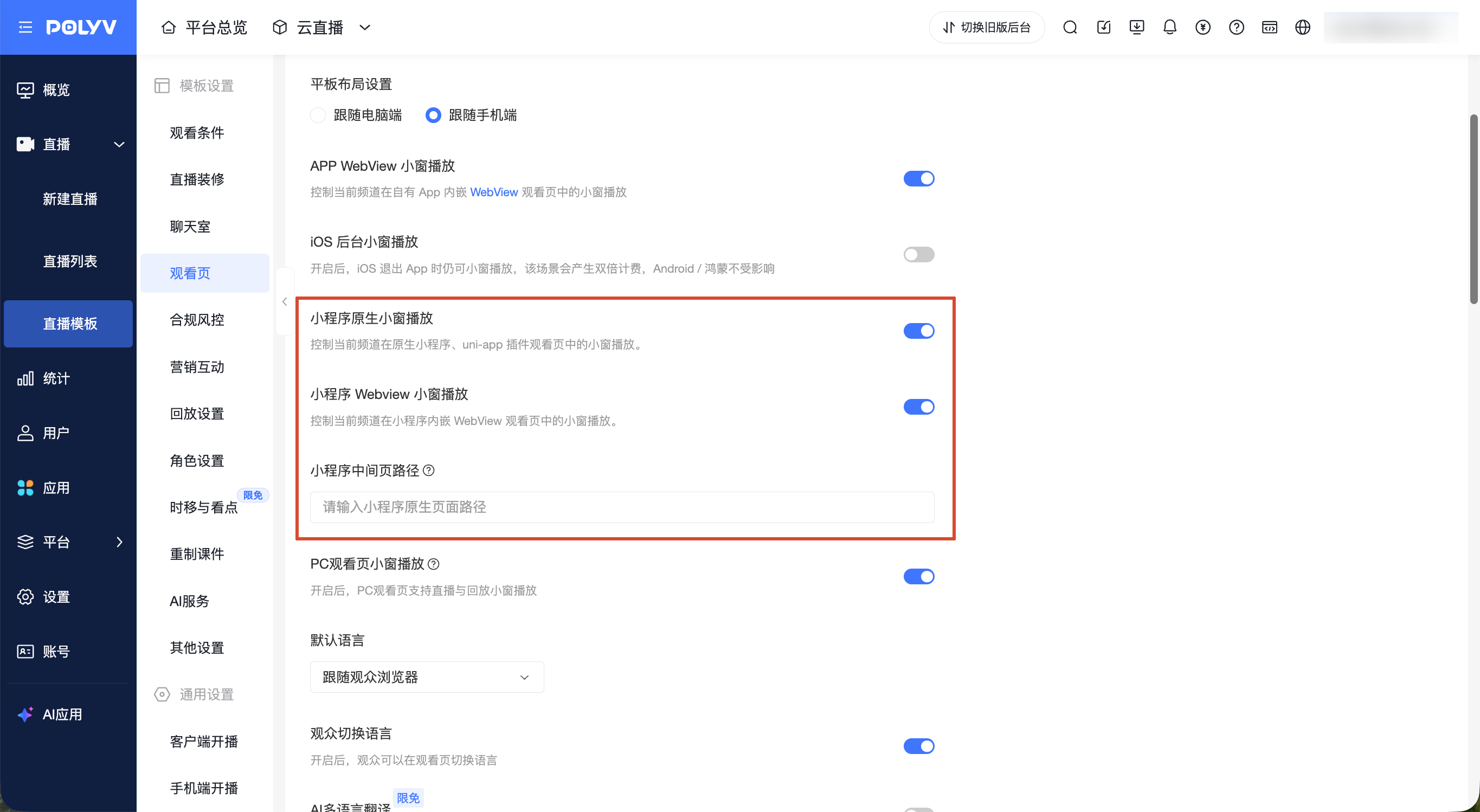
This capability applies to native Mini Program, uni-app, and WebView integrations. Viewers can continue in a small window after leaving the viewing page. It supports three forms: in-Mini Program, in-WeChat, and outside-WeChat small windows. Default templates and channels can independently enable Picture-in-Picture for native/uni-app and WebView; both switches are off by default and do not affect each other. WebView Picture-in-Picture requires a native Mini Program bridge page.
4.2 External authorization supports live trial viewing
For channels using external authorization, interfaces can configure a trial switch, trial duration, and the redirect URL after trial completion. When the channel has trial viewing enabled and the external authorization response returns trial status, viewers enter live trial mode. Trials apply to live sessions only: the same user’s duration is calculated separately for different sessions, while replays are not restricted. Playback stops and a guided entry appears after the trial ends.
5. Video Creation
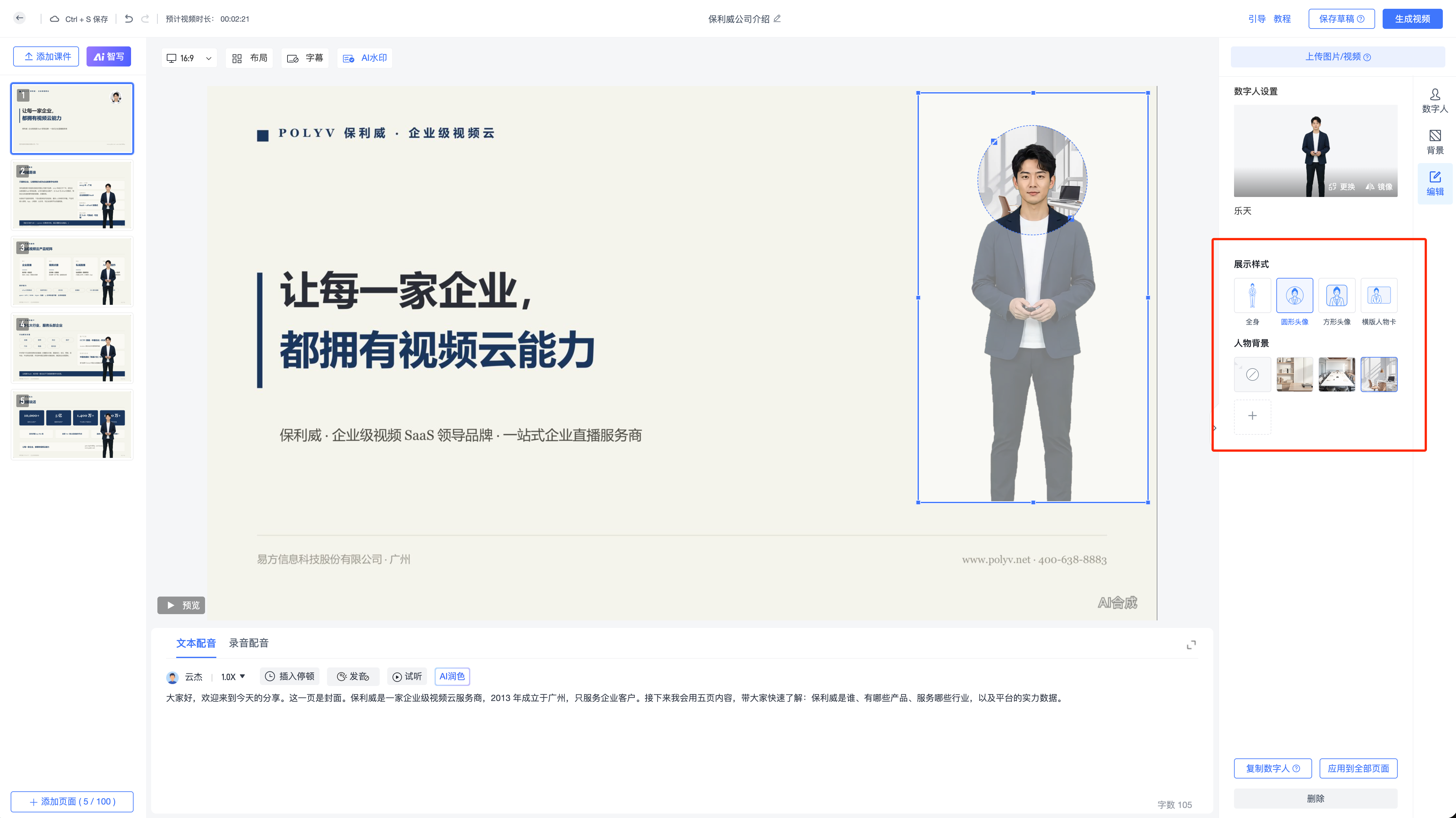
5.1 Digital humans support partial out-of-frame display and framing edits
For course-video production, digital humans can use different display styles and adjustable framing to show only an avatar, half body, or a presenter window and reduce overlap with courseware. Display Style supports None, Circle, Square, and Horizontal Rectangle. Teams can move the digital human on the canvas and adjust the crop; areas outside the crop do not enter the final video. The framing center and size are retained when display shapes change.
6. AI Applications
6.1 AI Quick Clip supports sub-account role permissions
When managing sub-account roles, teams can configure AI Quick Clip permission separately and synchronize control of menus, replay entries, and page access. AI Quick Clip is added under the AI Applications permission group and is unchecked by default. Authorized sub-accounts can view and use related entries. Without permission, the entry is hidden and cannot be opened through a historical URL.
7. Feeds and Aggregation Pages
7.1 Aggregation-page settings add Brand Color
When building an aggregation page, Brand Color can set the active button color for content categories and support branded page presentation. The option is available under Page Settings – Page Background. It currently applies to the active state of Live and VOD category tabs; text navigation and graphic navigation will use Brand Color after new button styles are added.
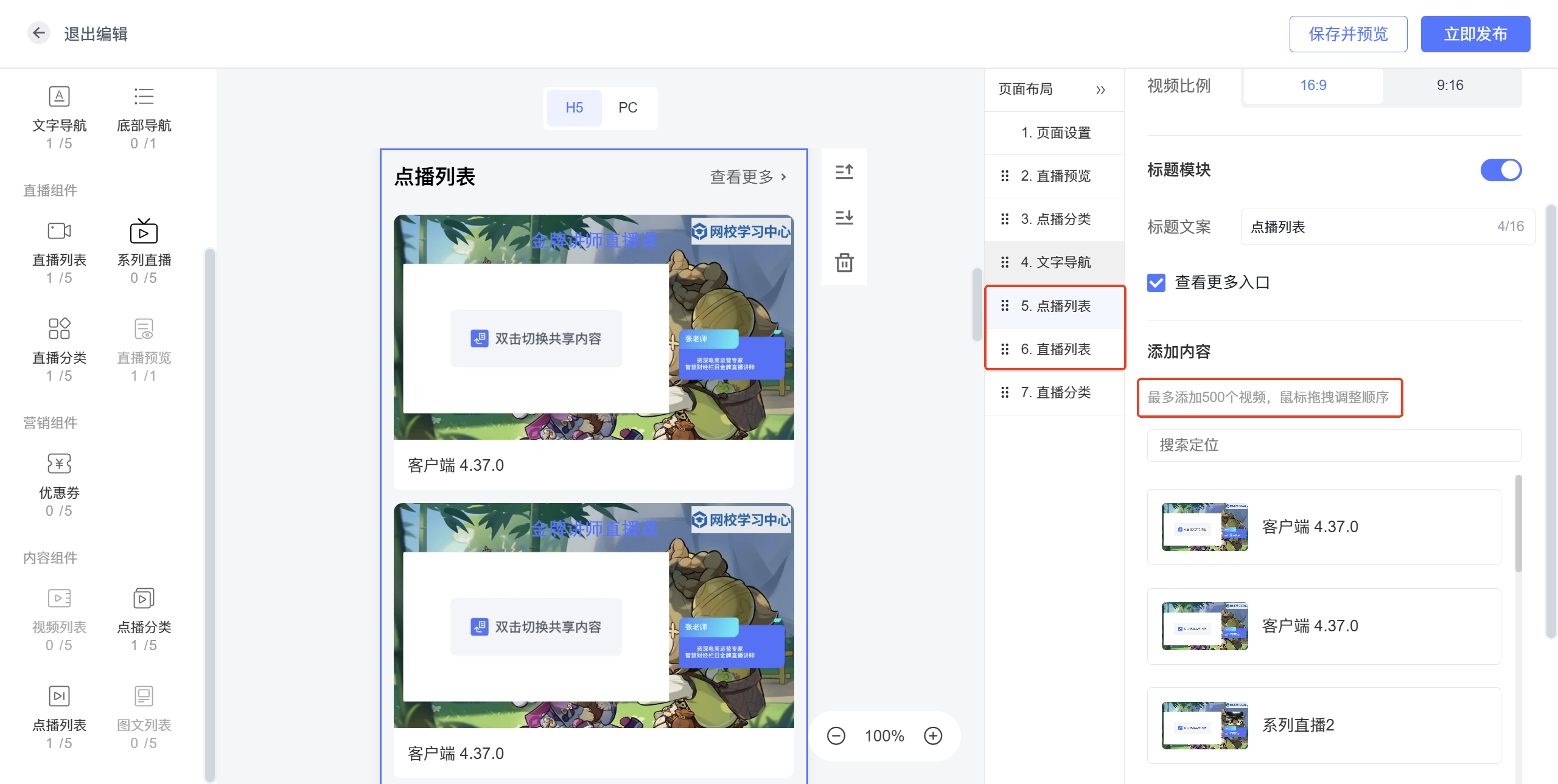
7.2 Live, VOD, and video-list limits are increased
When configuring content lists on an aggregation page, Live lists, VOD lists, and video lists can now display up to 500 items. The limit is increased from 50 to 500 items.
8. API and Callback Updates
8.1 Group Account APIs can query master-account remaining resources and distributable quota
Group resource-management systems can query master-account remaining resources through APIs to display resources, validate distributable quota, and set usage alerts. Supported resources include live minutes or concurrency, VOD storage, and VOD traffic. Responses return the current remaining usable amount and the group’s remaining distributable amount, distinguishing master-account, shared resource-pool, and allocated quotas, with plan validity, units, and data-update time.
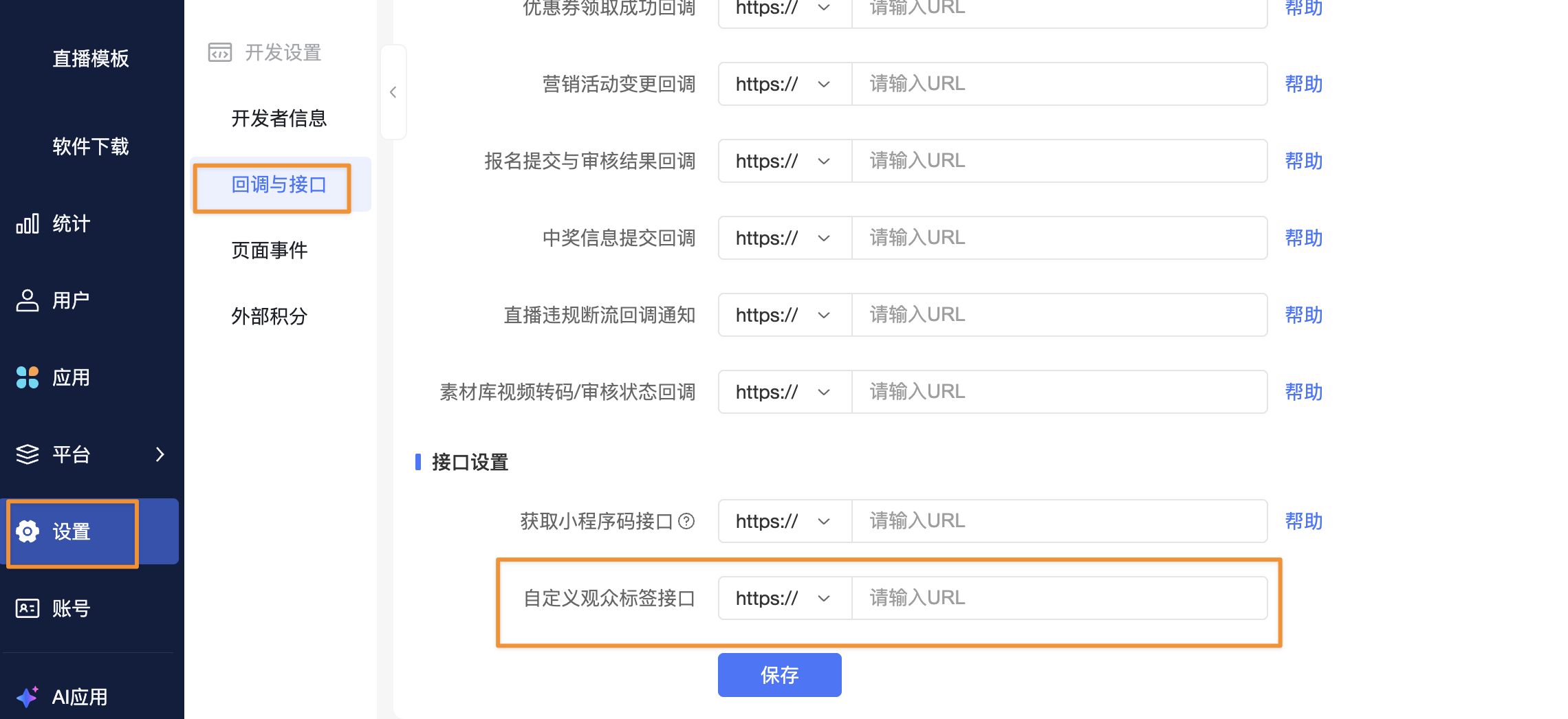
8.2 APIs can configure custom viewer identifiers
External systems can set viewer identity information through APIs for display in live rooms, such as membership tiers or other custom identifiers. A Custom Viewer Label API entry is added under Settings – Developer Settings – Callbacks and APIs. This capability is currently in phased rollout.
8.3 A Live Calendar query API is added
External systems can obtain live titles, presenters, live times, and live statuses through APIs for displaying live schedules. Returned live-status definitions are consistent with the Live Calendar in the management backend.
8.4 Video Creation callbacks add production-failure notifications
When a Video Creation task fails, the callback returns FAIL status and a customer-readable failure reason, allowing external systems to show results or notify relevant users. Existing task, PPT, digital-human, and subtitle information is retained. Callback addresses, signatures, and failed-retry rules remain unchanged.
8.5 Video Creation draft callbacks add PPT information
When a Video Creation draft is saved, the callback returns the PPT file ID and file name to associate a draft task with its source PPT. When a PPT is selected, fileId and fileName are returned. When none is selected, the draft callback is still sent normally and PPT information is returned as empty values. Existing callback addresses, signatures, and failed-retry rules remain unchanged.
About POLYV
POLYV is a leading enterprise-grade video SaaS brand. From 2020 to 2025, POLYV ranked No. 1 in the enterprise live streaming service provider ranking for six consecutive years. Its core products and services include low-latency live streaming, VOD, MR live streaming, digital humans, and live streaming studios, providing private-domain video technology and platforms, content operations, live streaming operations, and execution services for enterprise digital transformation.