
What Tool Should I Use to Add Video to My Company Website?
To play video on a company website, you usually need an enterprise cloud VOD or video hosting platform rather than a file folder. This guide compares embedded players, standalone H5 links, and Web SDK integration, then outlines a practical path from upload to multi-device testing.
Many businesses already have a product overview, training, or brand video that they want visitors to watch on the company website. The first decision is not how to build a player from scratch, but which service can host the video and embed a player in the page.
The short answer: To play a video reliably on a company website, use an enterprise-grade cloud VOD or video hosting platform. The platform handles upload, storage, transcoding, distribution, and web playback; your team embeds the generated player code in the existing page. If the website cannot yet be changed, start with a standalone H5 viewing link or QR code. Add a web player SDK, server-side API, or custom integration only when you need deeper player customization, membership access control, analytics callbacks, or large-scale content management.
01 Website Video Requires a Complete Playback Workflow, Not Just File Storage
A video that plays on a local computer will not necessarily play reliably for external visitors after you upload it to a website server. Website video requires upload, storage, transcoding, network delivery, web playback, and analytics.
1.1 Video Hosting Solves “Where to Put It”
Cloud VOD and video hosting platforms store uploaded videos and provide one console for processing and playback management. This keeps large video files out of the webpage itself and prevents a standard website server from handling every playback request on its own.
1.2 Transcoding and Distribution Solve “Smooth Playback on Different Devices”
The source video’s format, codec, resolution, and bitrate may not suit every browser or network condition. A VOD platform can process it into streamable versions and deliver them through a distribution network. That provides a more reliable website experience than a download link to the original file.
1.3 A web player keeps playback inside the company website
The web player is the component visitors see on the company website. It handles playback, pause, volume, fullscreen, quality selection, and playback-state events. Teams can use platform-generated embed code or customize the experience through a web player SDK.
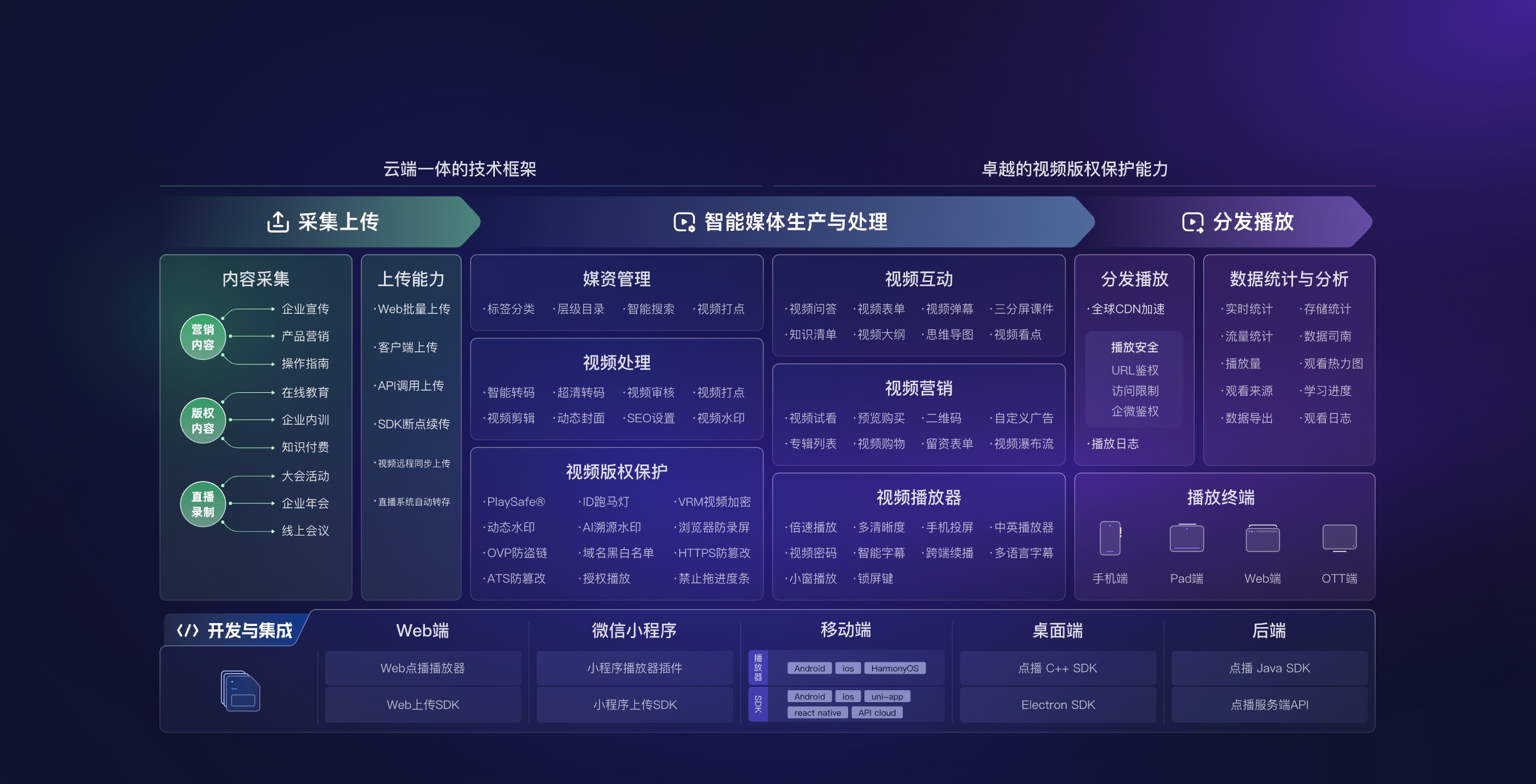
*Figure 1: Website video playback involves upload, processing, delivery, the player, and analytics. Image source: POLYV official Cloud VOD product materials*
02 Choose One of Three Integration Routes Based on Your Website
| Current situation | Suitable approach | Work still required |
|---|---|---|
| Already have a website and only want to place one video | Cloud VOD platform + web embed code | Upload the video, copy the code, place it on the target page, and test |
| Website cannot be modified for now | Standalone H5 viewing link or QR code | Set title, cover, access permissions, and sharing method |
| Need a custom player and data | Web player SDK + server-side API | Frontend integration, backend authentication, data and business workflow integration |
2.1 Already Have a Website: Use Embed Code
This is the most direct route. Upload the video to the VOD platform, wait for processing to finish, copy the player embed code, and add it to the relevant product, case study, course, or news page. A content editor may be able to do this in the content management system; otherwise a developer will need to update the page template.
After embedding, you still need to check page width, mobile aspect ratio, autoplay restrictions, cover image, sound, and fullscreen behavior. Browsers generally limit autoplay with sound, so businesses should not set “the page will automatically play sound after opening” as a default design.
2.2 Cannot Modify the Website: Start with a Standalone Viewing Link or QR Code
If the website redesign schedule is long, or you only need to temporarily send a video to customers, you can first use a standalone viewing URL generated by the platform, then place the link on a website button, in email, through a WeChat Official Account, or in sales materials. You can also generate a QR code for mobile scanning and viewing.
This route is faster to deploy, but it sends viewers to a standalone page instead of playing the video in the original page. Internal training, paid courses, and confidential material also require access controls. A public URL is not a security control.
2.3 Need Deep Customization: Use a Web Player SDK and Server-Side API
Use the web player SDK when the player must match the site’s visual system, require login or membership-based authorization, or send viewing data to internal systems. The company’s backend can manage video records, permissions, and business workflows through server-side APIs.
This does not mean building the video stack from scratch. A practical division of responsibilities is for the video platform to handle upload, processing, delivery, and playback, while the enterprise manages website pages, accounts, memberships, courses, products, and other business logic.
03 A Six-Step Minimum Viable Workflow for Your First Video
3.1 Upload and Wait for Processing to Complete
First upload a real business video and keep the original file as a backup. Proceed to webpage integration only after processing is complete; do not judge playback performance while the video is still uploading or transcoding.
3.2 Set Title, Cover, and Playback Information
The title and cover affect whether visitors click. Choose a cover that communicates the subject rather than a random or blurry frame, and make the title consistent with the surrounding page.
3.3 Choose Embed or Standalone Link
If you have website editing permissions and want playback in place, choose embed. If you cannot modify the page for now, use a standalone link first. Do not force all SDK and API elements into the first version just because you may eventually do deep integration.
3.4 Place It on a Test Page
Integrate the player on a test page before launch. Check loading, playback, pause, seeking, fullscreen, and orientation changes. On mobile, verify that the player stays within the viewport and does not cover other content.
3.5 Check on Computer, Mobile, and WeChat Environments
Open the page in the desktop and mobile browsers your audience uses, as well as inside WeChat. Autoplay, fullscreen, orientation, and redirects can behave differently in each environment. A “published” status in the admin console is not a substitute for real-device testing.
3.6 Review Playback Data After Launch
If the platform provides playback analytics, review plays, watch time, completion rate, and traffic source. Even for a single product video, these metrics reveal more than page views alone.
04 When Choosing a Tool, Check These Six Points First
4.1 Does It Provide Browser-Based Playback?
At a minimum, the platform should provide a web player, an embedding method, or a standalone viewing page. File storage without a browser-ready playback layer does not solve the website video requirement.
4.2 Does It Support Common Browsers and Mobile Devices?
Businesses should verify on computers, mobile phones, and WeChat based on their own audience, rather than only looking at a general description of “multi-device support.”
4.3 Does the Platform Connect Processing, Playback, Delivery, and Analytics in One Workflow?
Check whether one workflow covers upload, transcoding, playback, distribution, and analytics. Moving files and URLs manually between several tools makes later replacement, permission management, and reporting harder.
4.4 Can the Player Fit Your Business Pages?
Check aspect ratio, cover image, controls, brand styling, and responsive behavior. For deeper customization, review the web player SDK, demos, and developer documentation.
4.5 Do the Access Controls Match the Content’s Sensitivity?
Public brand videos can be available to every visitor. Internal, paid, or confidential videos require authentication, account rules, or other access restrictions. Do not use the same sharing model for both.
4.6 Can It Later Extend to Bulk Management and Business Integration?
You may have one video today and dozens of course, product, or case-study videos later. Evaluate classification, bulk upload, playback analytics, SDK/API, and permission capabilities during selection, but enable only what the first phase requires.
05 What POLYV Offers in This Scenario
According to the current POLYV Cloud VOD product page and Developer Center, POLYV Cloud VOD covers video upload, storage, processing, delivery, and playback, and provides a Web VOD player and Web upload SDK. POLYV also describes standalone viewing URLs, H5 and QR-code distribution, and integration options for embedding players in webpages, apps, and Mini Programs.
For a business adding its first video to a company website, POLYV can provide the hosting and web playback layer. Upload the video, then choose either page embedding or a standalone viewing URL. As requirements grow to include membership access, content libraries, player customization, or data integration, evaluate the Web VOD player, Java SDK, and server-side APIs against the current documentation.
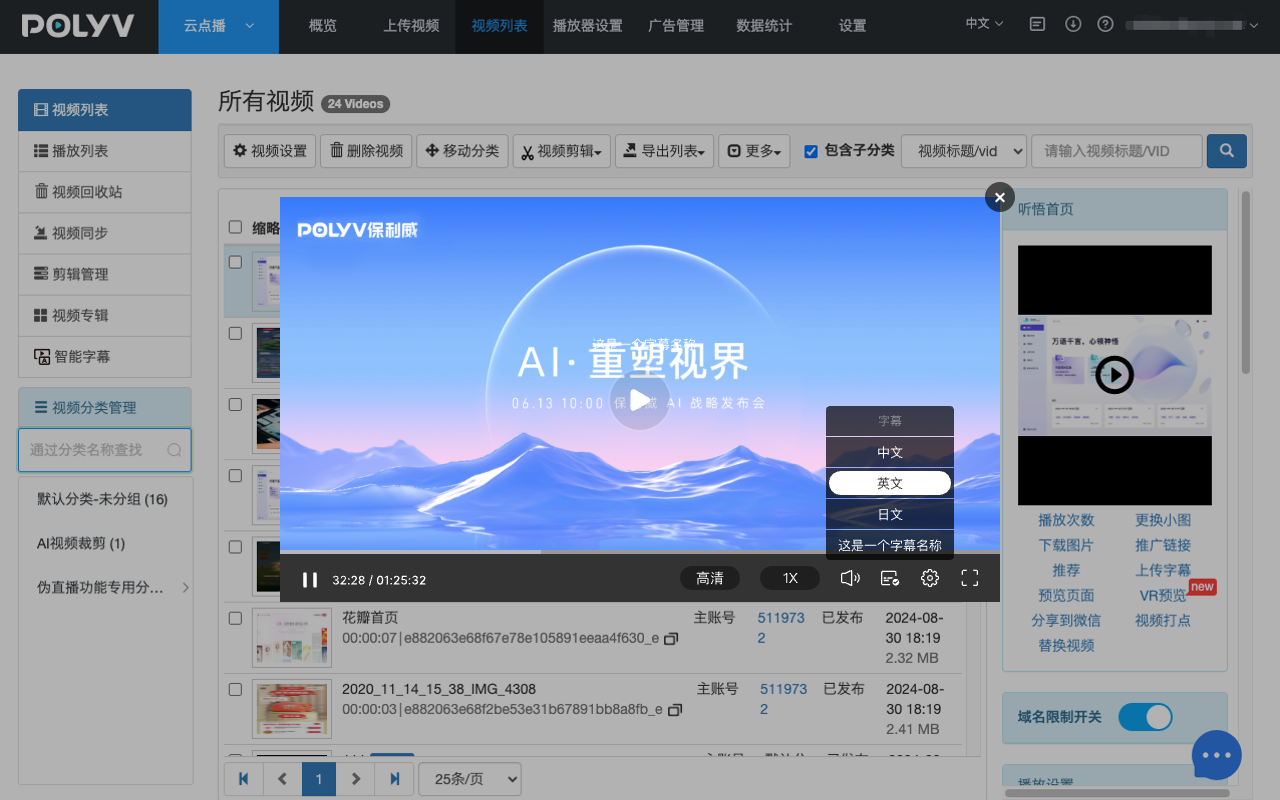
*Figure 2: The POLYV Cloud VOD console centralizes video management and player previews. Website embedding still requires the appropriate embed code or web player configuration for the page structure. Image source: POLYV Cloud VOD product interface.*
06 Frequently Asked Questions
6.1 Can I Just Upload an MP4 File to the Website Server?
It may work for a low-traffic page, but your team would still own format compatibility, bandwidth, load performance, the player, analytics, and ongoing maintenance. For a production company website, a platform that combines hosting, processing, delivery, and web playback is easier to operate.
6.2 Without a Website, Can Customers Still Watch the Video First?
You can first use a standalone H5 viewing URL or QR code and send it through email, WeChat, or materials. After the website is ready for editing, switch to page embedding.
6.3 After Replacing the Video, Do I Need to Redevelop the Website Page?
It depends on the platform and integration method. If the player points to a stable video or page configuration, the team may be able to replace the content in the admin console. If the video identifier or embed code changes, the webpage must also change. Test explicitly whether replacement preserves the existing URL or code before launch.
6.4 Can website videos be password-protected or restricted to members?
Depending on the platform, you can use passwords, login-based authorization, allowlists, or permissions tied to enterprise accounts. Match the control to the content’s sensitivity and verify it against the current documentation and business backend. Hiding a button on the page is not access control.
6.5 How do I estimate the cost of placing one video on a company website?
You usually need to confirm video size and resolution, retention period, estimated number of viewers and duration, whether transcoding is required, and whether permissions or customization are needed. When these parameters are unclear, it is not appropriate to judge based on a single fixed price. You can first run a small-scale test with a real video, then calculate storage, processing, and playback usage.
About POLYV
POLYV is an enterprise video SaaS provider. For company-website video, POLYV Cloud VOD supports upload, storage, processing, player embedding, standalone viewing pages, and developer integration. The video platform handles the media workflow while the company retains control of page design, navigation, user access, and conversion paths. Feature availability and implementation scope should be confirmed against the current account edition and project requirements.