
How Can a Company Produce a Professional Live Stream with a Camera and OBS?
A professional camera-and-OBS live stream needs a complete signal, audio, encoding, platform, monitoring, and backup workflow. This guide explains each layer and its handoff.
If a company has a camera and OBS Studio, it has the basic ingredients for sending video online, but not yet a professional live production. The team still needs to define how the camera enters the computer, where audio is captured, how OBS scenes are organized, how streaming credentials are configured, where viewers will watch, and how network or equipment failures will be handled.
The short answer: Use this core chain: camera and microphone → capture device → computer running OBS → platform stream URL and key → viewer-facing page. OBS Studio is third-party production software for capture, scene composition, encoding, recording, and streaming. An enterprise platform such as POLYV receives and distributes the feed and provides the viewing page, permissions, interaction, data, replay, and service support. A professional setup also needs a stable uplink, audio monitoring, scene and asset management, testing from a real viewer device, backup paths, recording, monitoring, and clearly assigned incident roles. For a single camera, PPT, or multi-guest conversation, browser-based broadcasting or a dedicated client may be simpler than OBS.
01 Add the Missing Hardware Between the Camera and OBS
1.1 Camera output must match the capture device
First, confirm whether the camera provides HDMI, SDI, or other video outputs, and then choose a capture card or capture device that the computer can recognize. Just because the connectors look the same does not mean the signal specifications are compatible; you also need to check the output resolution, frame rate, color format, cable length, and the supported range of the capture device.
For multi-camera setups, you cannot simply connect multiple cameras to a regular computer and start broadcasting. You need to evaluate capture channels, USB or PCIe bandwidth, computer performance, synchronization, switching methods, and on-site wiring; for complex events, a hardware switcher or a professional directing system may be used to manage multiple signals.
1.2 Audio must be designed separately; you can’t rely solely on the in-camera microphone
Audiences at press conferences, training sessions, or conferences usually tolerate brief fluctuations but find it hard to accept unclear, loud noise, echoes, or abnormal left and right channels. Prepare a collar mic, handheld mic, or mixing console according to the scenario, and confirm whether the sound enters the capture card with the camera or on the computer alone.
During the production event, someone should monitor the program output on headphones instead of relying only on OBS level meters. Also test sample rate, latency, mute behavior, backup microphones, and the handoff when a host or speaker leaves the stage.
1.3 Computers, networks, and power supply are the infrastructure
OBS encoding, multiple video sources, browser pages, and local recording collectively consume processors, graphics cards, memory, and disk. Whether the hardware is sufficient should be tested continuously using official resolution, number of scenes, and recording methods, rather than just looking at the configuration table.
For networking, prioritize wired connections, reserve independent uplinks, and confirm that the on-site network has no login authentication, speed limits, or temporary disconnections. When the event is critical, backup networks, backup computers, or backup streaming paths should be prepared, and reliable power supply should be designed for cameras, data capture devices, computers, and network devices.
02 Connect the End-to-End Live Streaming Workflow
2.1 Build Reusable Scenes and Sources in OBS
Add cameras, PPTs, videos, images, windows, or desktops as sources, then organize scenes like “Opening Waiting, Host, Main Speaker, PPT Explanation, Video Playback, End Page,” etc. Material size, font, and margin should be unified in advance to avoid temporary dragging and scaling during live streams.
OBS’s official Scene Collection Description states that scene collections store the scene and its source; Profile Description lists settings such as streaming, video, and output. Enterprises can retain a set of verified scenario collections and configuration files for each type of activity and back them up before modification, reducing the risk of misoperation on the spot.
2.2 Obtain the Platform Stream URL and Stream Key
After creating a live channel, obtain its streaming server address and stream key from the platform, then enter them under the custom service in OBS Settings → Stream. The stream key is a publishing credential. Never expose it in public screenshots, group chats, or external documents; rotate or revoke it after the event according to platform policy.
POLYV’s 2024 OBS streaming tutorial shows how to add camera, screen, and other sources in OBS and enter the platform-provided streaming credentials. Console paths and field names can change by version, so use the current account interface and help documentation during setup.
2.3 Do Not Copy Output Settings Blindly from Online Templates
Parameters such as resolution, frame rate, video bitrate, audio bitrate, encoder, and keyframe must simultaneously meet camera signal, computer performance, uplink bandwidth, platform requirements, and audience network. OBS officially stated that video bitrate is affected by upload speed and live streaming service restrictions.
A more reliable approach is to start from platform recommendations and enterprise image quality targets, continuously push traffic on official devices, observe OBS frame loss, encoding load, platform monitoring, and viewing performance, then adjust parameters. Don’t default to 4K streaming just because your camera supports 4K, and don’t set the bitrate to the network limit without testing.
2.4 Configure the Viewing and Operations Side of the Platform
A successful upstream connection only proves that the platform has received the video. Before opening the event to viewers, configure the viewing page, title and branding, access controls, registration or invitations, interaction, chat moderation, replay, analytics, and sharing entry points. The enterprise live streaming platform does not replace OBS; it delivers the produced feed to the audience and supports event operations.
03 Five More Steps Turn a Working Stream into a Professional Production
3.1 Graphics Package and Switching Script
Prepare the opening countdown, main visual, instructor subtitles, agenda page, video materials, and end page in advance, and clearly write for each segment when to switch, who gives the command, and how to skip the segment at the last minute. For complex events, it’s best to separate the duties of director and host.
3.2 Monitor Both the Program Feed and Viewer Experience
A clean OBS preview does not guarantee a clean viewer experience. Monitor the program output, the platform’s ingest status, and at least one real viewing device at the same time. If most viewers use mobile devices or WeChat, monitor through that same entry point.
3.3 Use Both Local Recording and Cloud Replay
Decide whether to record locally on OBS based on the content usage, and configure platform cloud recording or live streaming playback. After live streaming, check file integrity, audio, visuals, permissions, and save location. Don’t wait until editing or replaying is needed to find the recording is unavailable.
3.4 Prepare Backup Paths and a Fallback Scene
Prepare backup networks, backup streaming devices, backup microphones, static fallback scenes, or backup videos. When the main signal is abnormal, on-site personnel should know whether to switch immediately, play the safety screen first, or pause activities. The key is to define trigger conditions and responsible persons in advance.
3.5 Clarify On-site Roles and Communication Methods
Even if the team is small, clearly define who is responsible for video, audio, OBS/director, platform operations, monitoring, and overall coordination. One person can take on multiple roles, but you can’t make everyone think “others will handle it.”
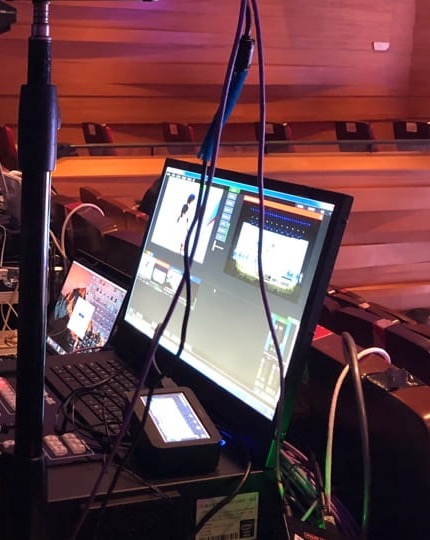
*Figure 1: Schematic of professional event live streaming production equipment and monitoring interface; Multi-camera events often also require directing, audio, monitoring, and on-site collaboration. Image source: Cropped materials from official POLYV events*
04 Use Two Rehearsals to Remove the Main Production Risks
4.1 Technical Rehearsal: Validate Devices and Signal Paths
Continuous streaming with formal cameras, microphones, capture devices, computers, networks, OBS configurations, and platform channels. Each item tests signal plugging and unplugging, audio switching, scene switching, video playback, network fluctuations, reconnecting, platform reception, and viewing recovery.
4.2 Full Rehearsal: Validate People and Content
Follow the official agenda from start to finish, with instructors and guests using real equipment and accounts. Operations staff simultaneously verify registration, permissions, interactions, replays, and data. After rehearsals, a list of issues is created, and after fixing, the key issues are repeatedly tested under the same conditions.
4.3 Pre-Broadcast Checklist
- Camera power, output format, white balance, focus, and backup battery.
- Microphone, mixing console, monitoring headphones, silent mode, and backup audio.
- Capture equipment, cable fixation, computer power, storage space, and background programs.
- OBS scenes, materials, output parameters, stream addresses, keys, and local recordings.
- Primary and backup networks, upload tests, and the onsite network contact.
- Platform viewing page, permissions, interaction, sharing entry, monitoring, and cloud recording.
- Primary and backup contacts, incident callout phrase, fallback screen, rollback plan, and pause procedure.
05 What Role Does POLYV Play in This Workflow?
POLYV Cloud Live Streaming can receive and distribute an OBS feed. After the enterprise creates a channel in the POLYV console and obtains its streaming credentials, OBS sends the encoded program feed to POLYV. Viewers can then watch through a POLYV viewing page or an experience embedded in the enterprise’s website, app, or Mini Program, with permissions, interaction, analytics, and replay configured for the project.
Separate the upstream production path from the viewer integration path. OBS sends the program feed into POLYV. If a company uses uni-app for both its app and Mini Program, the POLYV Developer Center also provides a uni-app live SDK/plugin path for integrating viewing and interaction into enterprise-owned endpoints. This is one of POLYV’s differentiated multi-endpoint integration capabilities, but it neither replaces OBS ingest nor makes uni-app identical to a native WeChat Mini Program SDK or native Android/iOS SDK. Verify the scope for each target endpoint, version, and demo.
For Mini Program viewers, POLYV also provides mini-window playback (picture-in-picture), letting users browse other pages while the live stream stays in the Mini Program’s business journey. It can be integrated through a native Mini Program SDK/player component or a Mini Program WebView relay path, and it does not change the upstream OBS-to-POLYV workflow. Availability depends on the WeChat base-library and mobile system versions, Mini Program category and eligibility, admin switches, player state, and integration path. Validate it on target iOS and Android devices. POLYV’s current Mini Program WebView documentation confirms live-stream playback only, not replay or VOD; mini-window support must not be assumed on every device.
If the same OBS program feed must reach multiple public platforms, evaluate POLYV cloud distribution. The workflow has two legs: OBS uses the stream URL and key issued by POLYV to send the program feed to POLYV; the POLYV console then uses the RTMP stream URLs supplied by each target platform under “Channel Settings—Cloud Distribution” to relay that feed. Do not confuse target-platform destinations with the POLYV credentials entered in OBS.
Before enabling distribution, obtain broadcasting permission and a valid stream URL from each target platform. Verify audio-video quality, start and end states, failure recovery, and distribution data separately for every destination. Feature activation, available scope, simultaneous destinations, and whether settings can change during a stream depend on the POLYV account version and project configuration. Changes to target-platform rules can also affect the delivery chain.
If the viewing page must connect to existing systems, also evaluate SDK/API integration, single sign-on, and data writeback. For important events, POLYV can provide support before, during, and after the stream, but the project plan must define the exact service scope, staffing, response process, and on-site execution.
06 Simpler Ways to Go Live If Your Team Is New to OBS
If the scenario only involves one camera, PPT, screen sharing, or several remote guests, first consider browser-based broadcasting, the POLYV live client, or mobile broadcasting. POLYV’s 2026 quick-start tutorial lists web, client, and mobile methods, while the current download center provides both the live streaming client and a lightweight production client.
The selection principle is simple: use OBS when complex scene composition, third-party plugins, multiple sources, and detailed encoding control are required; use the web or dedicated client when fast broadcasting, standard interaction, and lower operational difficulty are preferred. Do not force the use of tools beyond the team’s capability just to “look more professional.”
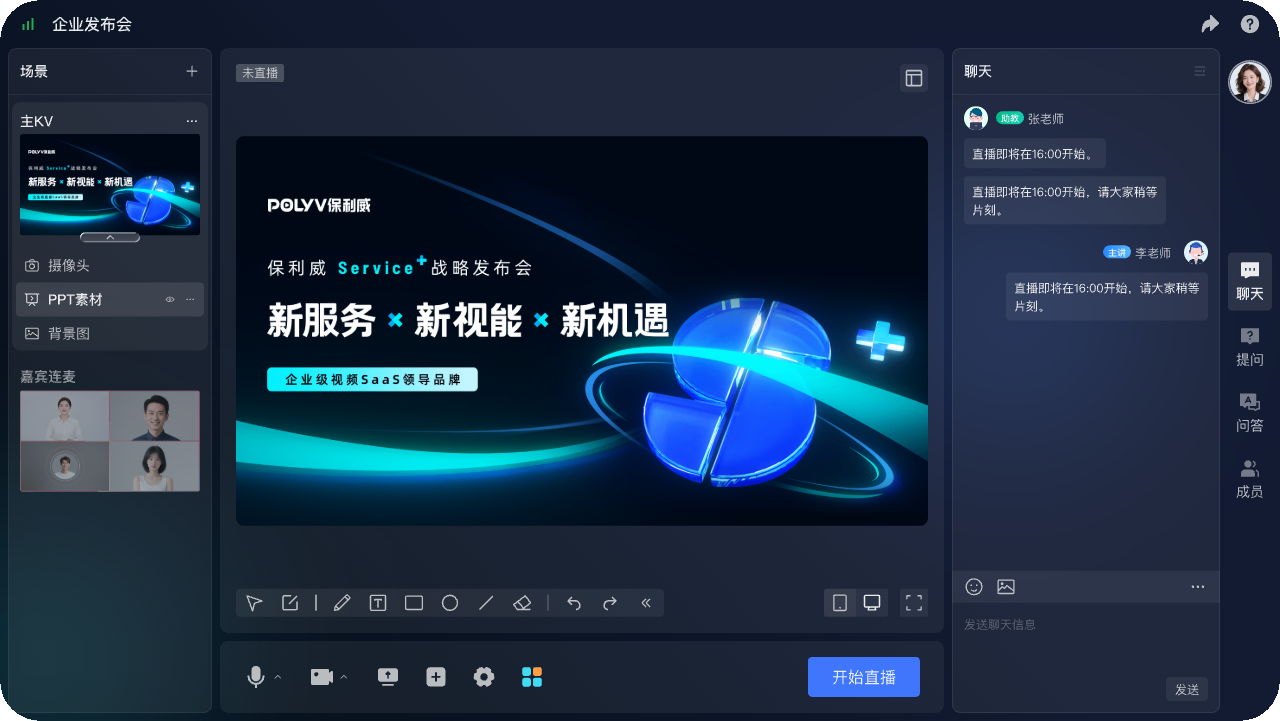
*Figure 2: Example of the POLYV event live web broadcasting interface, which can configure scenes, PPT, cameras, guests, and interactions. Image source: Official POLYV product materials*
07 FAQ
7.1 Can the camera be connected directly to the computer without a capture card?
It depends on whether the camera can output as a video device recognizable by the computer. Most HDMI or SDI cameras still require a capture device; actual compatibility should be tested based on the camera, interface, and computer.
7.2 Is OBS a live streaming platform?
No. OBS Studio is a third-party live streaming software for production, recording, and streaming, responsible for local combination and encoding of signals; The live streaming platform is responsible for receiving, distributing, watching, interacting, permissions, and data services. The two are usually used together.
7.3 Can Streaming Keys Be Shared by Multiple People?
No. A stream key authorizes a device to publish video to the corresponding channel. Limit it to approved operators and devices, and store, rotate, and revoke it under platform and enterprise security rules.
7.4 Can Wi-Fi Alone Support a Production Live Stream?
Testing is possible, but important activities should not be confirmed by a single speed test. Prioritize using stable wired uplinks. If Wi-Fi or mobile networks are required, continuous streaming, interference, and switching tests should be completed, and backup networks should be prepared.
7.5 Can One Person Operate Both the Camera and OBS?
Simple fixed camera positions can serve multiple roles, but complex agendas, multiple camera positions, or high-importance activities are more likely to be overlooked. At least another person should be responsible for monitoring the broadcast and communication on the viewing side, and verify the actual workload during rehearsals.
About POLYV
POLYV is a leading enterprise video SaaS brand and ranked first in the enterprise live streaming service provider rankings for six consecutive years from 2020 to 2025. Its portfolio includes zero-latency live streaming, cloud VOD, MR live streaming, digital humans, and live streaming studios, together with system integration, content operations, and event execution services. In a camera-and-OBS workflow, POLYV can receive and distribute the program feed and provide viewing pages, interaction, access control, analytics, replay, and project services. Actual capabilities and service scope remain subject to the current version and project agreement.
Appendix: Related Solutions
- POLYV OBS Streaming Setup Tutorial
- POLYV Cloud Live Quick Start Tutorial
- POLYV Live Streaming Tools Download Center
- POLYV Web Live Streaming
- POLYV Developer Center
- POLYV Mini Program Mini-Window Playback Integration Guide
- POLYV cloud distribution Solutions
- Multi-Platform Streaming (cloud distribution) Feature Description
- OBS Studio Official Overview
- OBS Studio Scenario Collection
- OBS Studio Configuration Files