
How Do I Replace a Published Video Without Changing the Original Sharing Link?
POLYV Cloud VOD's Replace Video feature currently supports replacing content while keeping the original playback link and video QR code unchanged. This article also explains how to verify video identifiers, embed codes, cache, subtitles/cover, permissions, and historical data, and provides backup and rollback steps.
Companies often need to update a published video when a product tutorial changes, an event replay needs editing, or a course contains an error. They may want to replace the content without reprinting QR codes, changing webpages, or notifying every customer. The important distinction is that a viewing-page URL, company webpage URL, QR code, player embed code, and video ID are different types of links and identifiers.
The short answer: The current official page for POLYV Cloud VOD’s Replace Video feature states that the playback link and video QR code remain unchanged after replacement. Before production use, back up the old version and verify the video identifier, embed code, cache, subtitles, cover, access permissions, and historical data; the page does not claim that every related field remains unchanged. If the current integration falls outside the feature’s supported scope, point external links to a stable landing page controlled by the enterprise and switch the underlying video there.
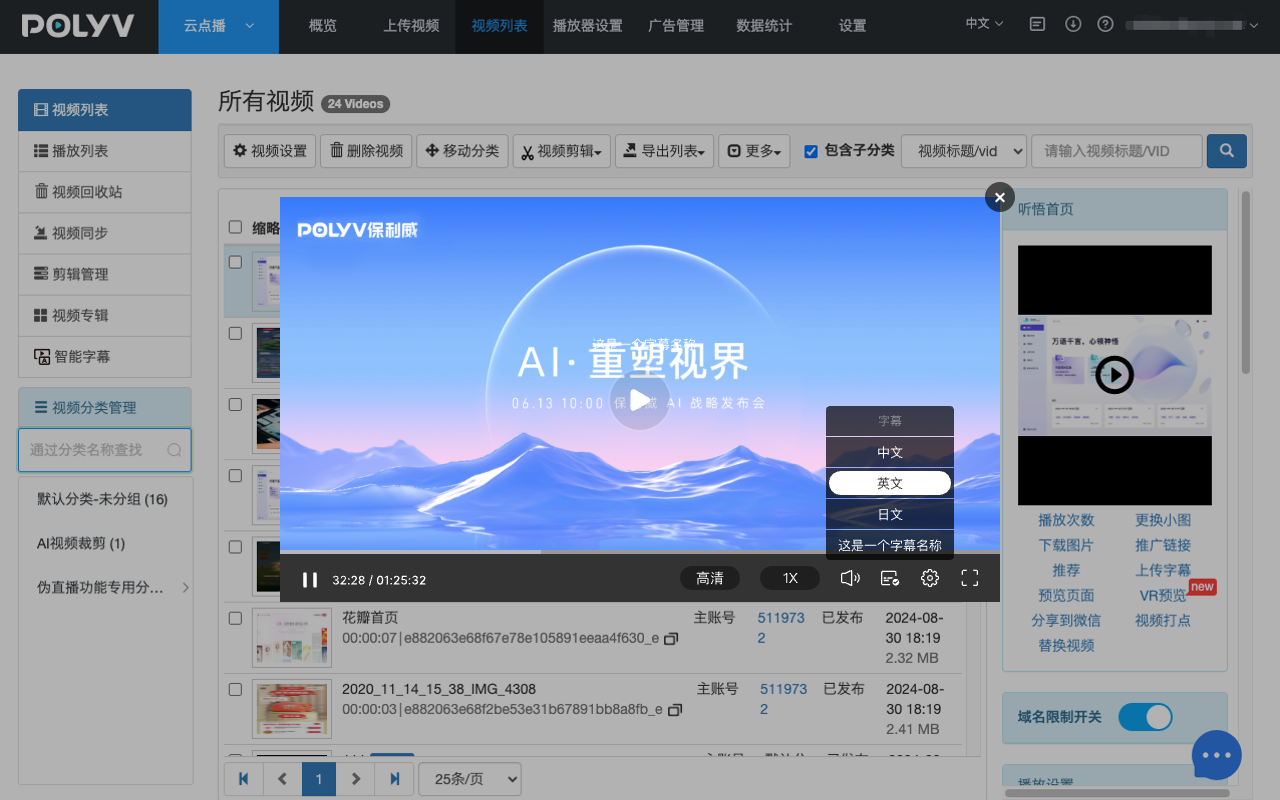
*Figure 1: POLYV Cloud VOD workbench illustration; the screen includes management entries such as the video list, player preview, and Replace Video. Actual features, permissions, and behavior depend on the current account version.*
01 First, Clarify Exactly What You Need to Keep Unchanged
1.1 Viewing Page URL
The customer may receive a platform-hosted standalone viewing page directly. When using POLYV Cloud VOD’s Replace Video feature, the current official page states that the original playback link remains unchanged; however, the page title, cover, permissions, cache, and historical data still need to be verified against the current integration.
1.2 Enterprise Web Page Address
The address of your company website or customer portal is controlled by your enterprise. Even if the underlying video identifier changes, as long as the web page path remains unchanged and you update the player configuration on that page, external users still visit the original web page. This is a more reliable abstraction layer for long-term content.
1.3 QR Code
A QR code is only an encoding of a web address. When using POLYV Cloud VOD’s Replace Video feature, the current official page states that the original video QR code remains unchanged. If you use another replacement method, whether the QR code continues to work depends on the address it points to. Long-term printed materials should still be tested in advance, and you should keep a controlled landing page as a fallback.
1.4 Video Identifier and Player Embed Code
In development integration, a page may directly reference a video identifier. Some replacement methods keep the original identifier, while others generate a new one. Do not rely only on whether the page appears to open; you must also check the code, API calls, cache, and data ownership.
02 Two Approaches for Keeping External Entry Points Stable
2.1 Approach 1: Use the Platform’s In-Place Replacement Capability
The current official POLYV Cloud VOD Replace Video page states that the playback link and video QR code remain unchanged after replacement. Operations staff select the target video in the admin console, upload the new file, and wait for processing. They do not need to redistribute those two entry points, but they must still verify the replacement workflow, cache, subtitles, cover, output qualities, access permissions, and data behavior.
This public statement only directly proves that the playback link and video QR code remain unchanged. It cannot be extrapolated to mean that the video identifier, embed code, or historical data will inevitably remain unchanged. Before production use, verify the current account, video status, and integration method, and validate the workflow with test content.
2.2 Approach 2: Use a Fixed Enterprise Page and Switch the Underlying Video
Have your QR codes, emails, and documents always point to your own page, and the page loads the current version of the video according to its configuration. When updating, create and verify the new video first, then switch only the page configuration after confirming it is correct. The old video can remain for a period for rollback and auditing.
This path requires your enterprise to maintain a page or content system, but it decouples external entry points from any single platform’s video address. It is especially suitable for long-term product manuals, device QR codes, and critical customer materials.
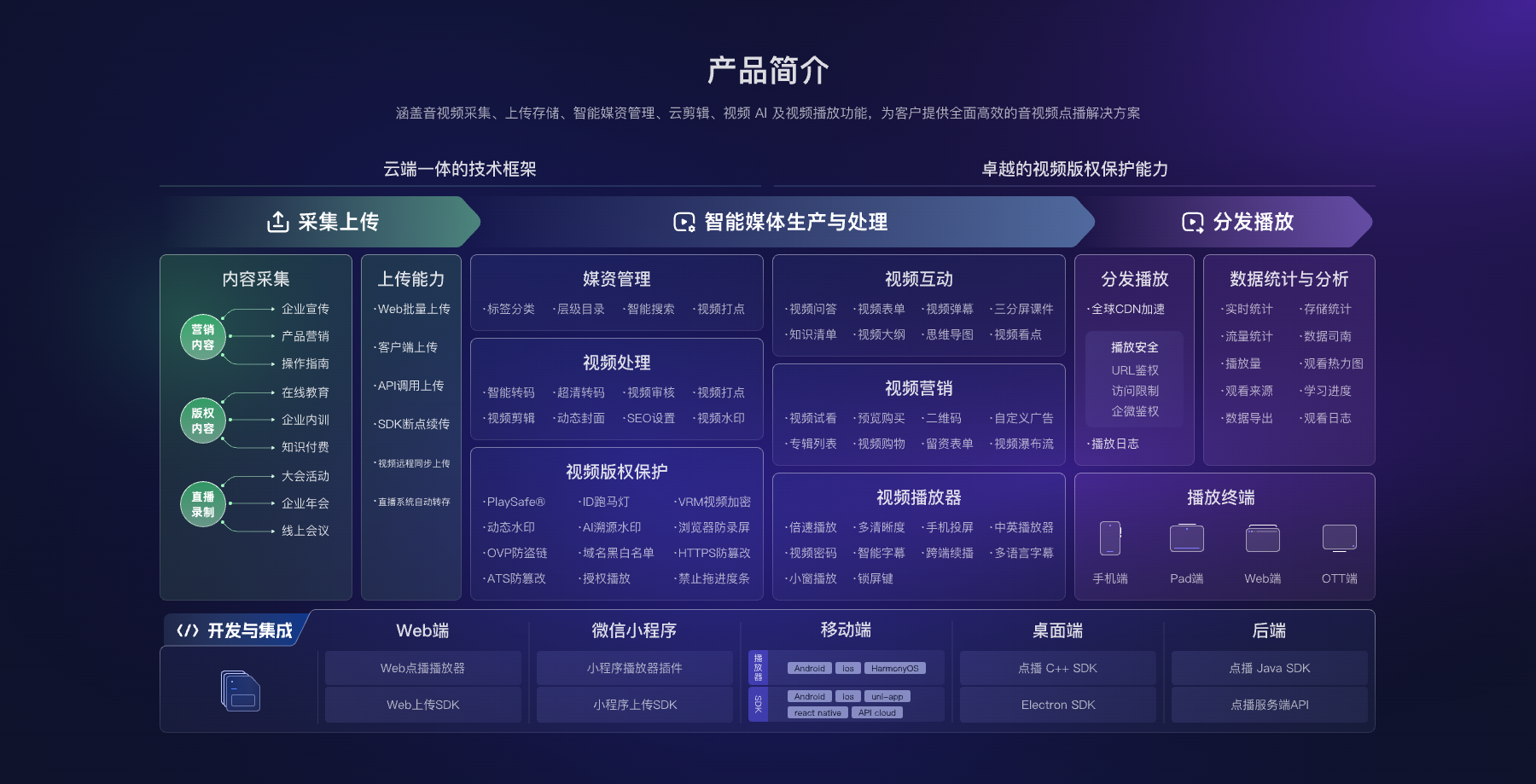
*Figure 2: Stable entry point design requires considering video content, player, enterprise page, and data separately; image from POLYV’s official Cloud VOD product materials.*
03 Verify Eight Items Before Production Use
3.1 Back Up the Old Master File and Page Information
Save the old video file, video identifier, page address, cover, subtitles, permissions, and publish time. Do not overwrite the only official version without a backup.
3.2 Rehearse with a Test Video
Use non-critical content to rehearse the complete replacement process and record processing time, page status, and cache behavior. Do not make the first attempt on content linked from mass-printed QR codes.
3.3 Check Basic Properties of the New File
Confirm that duration, aspect ratio, audio, subtitles, and resolutions meet expectations. If the new and old videos differ greatly, the page aspect ratio and cover may need to be adjusted together.
3.4 Observe What Users See During Processing
During replacement, the page may continue to play the old version, be temporarily unavailable, or wait for new content processing. Understand the actual behavior and choose a low-traffic time window.
3.5 Clear and Verify Caches
Open the page in incognito windows, over mobile networks, and in different browsers to confirm that the result is not a false positive caused by the administrator’s cached session. Do not rely only on refreshing the admin preview.
3.6 Check Title, Cover, Subtitles, and Permissions
Replacing the file does not necessarily automatically replace all auxiliary information. Title, cover, subtitles, chapters, access conditions, and page description should each be confirmed.
3.7 Verify Data Attribution
Confirm whether playback and viewing data before and after replacement is continuous, separate, or recalculated. If the data is used for course progress or customer review, decide in advance how to interpret the old and new versions.
3.8 Prepare a Rollback Plan
Keep a way to restore the old content or switch the enterprise page back to the old configuration, and record the owner. A rollback plan is only reliable if it has actually been rehearsed.
04 When Not to Overwrite Directly
Do not overwrite in place immediately when the old version has compliance or audit value, users need continued access to historical versions, replacement will change course duration and learning records, the page is referenced by multiple systems, or the new video has not passed target device tests. Instead, create a new video and switch at the page layer.
Enterprises should also establish version states: in production, pending review, published, replaced, archived. Record file name, video identifier, and page address separately so that operations staff do not judge versions only by title.
05 How POLYV Is Used in Video Replacement Scenarios
Currently, POLYV Cloud VOD provides product capabilities such as video hosting, media asset management, player, and standalone viewing address. Among them, the official Replace Video page clearly states that after replacing video content, the playback link and video QR code remain unchanged. Specific account scope, processing status, video identifier, embed code, cache, and data behavior should still be subject to the current version and project validation.
If your enterprise adopts a fixed web page, you can evaluate the Web VOD player and server-side APIs from the POLYV Developer Center and update the page configuration after the new video passes validation. POLYV handles video content and playback capabilities; your enterprise handles external entry points, version approval, and rollback strategy.
06 Frequently Asked Questions
6.1 Does the QR code always remain unchanged after replacing a video?
When using POLYV Cloud VOD’s Replace Video feature, the current official page states that the original video QR code remains unchanged. If the QR code points to an enterprise page or you use another replacement method, you still need to confirm the URL it points to and the underlying player configuration, and perform a real replacement test.
6.2 Can the old video be restored after replacement?
It depends on the platform’s capabilities and whether the enterprise has saved the old master file. Before production use, back up the file and prepare rollback steps; do not assume the system automatically retains all historical versions.
6.3 Will subtitles and cover be replaced automatically?
Not necessarily. Auxiliary information may be managed independently. After replacement, check the cover, subtitles, chapters, title, and page description one by one.
6.4 Will historical viewing data be preserved?
It depends on whether the replacement reuses the video identifier and the platform’s statistical rules. If the data is used for business decisions, confirm it on test content and record the replacement time.
6.5 How long does replacing a video take?
There is no universal time. Video size, duration, resolution, and processing pipeline all affect it. Record the actual window through testing, and avoid performing the first operation during high-traffic periods.
About POLYV
POLYV is an enterprise video SaaS provider whose core products cover live streaming, Cloud VOD, and embeddable video technology. For content updates, POLYV Cloud VOD provides video management and player capabilities. Enterprises should incorporate stable entry points, version approval, data definitions, and rollback into their own content-governance process.