
How Do You Embed Live Streaming in an Existing LMS?
Embedding live streaming in an LMS requires more than pasting a player into a course page. This guide connects pages, identity, channels, authorization, and learning data across light, medium, and deep integration paths.
If a company already has a training system, employee accounts, and course catalogs, when adding live streams, they usually don’t want employees to jump to another platform to register again, nor do they want training administrators to repeatedly create courses, manage lists, and track learning results across two systems. What really needs to be done is to make live streaming a curriculum capability within the LMS.
The short answer: Connecting live streaming to an LMS involves more than embedding a player; it connects four layers: the page layer puts the viewing page or player into the course page; the identity layer maps LMS users as live viewers and controls access; the management layer creates channels, configures viewing conditions, and receives status through server APIs; the data layer records viewing, interaction, and session statistics according to the company’s perspective. Lightweight pilots can first embed mature viewing pages; deeper integration can then use web viewing page SDKs, live streaming players, and server-side APIs.
01 Break LMS live streaming into four layers, not just player embedding
1.1 Page Layer: Employees enter the live stream from the LMS course page
The page layer solves the “Where to look” problem. The simplest way is to open a mature viewing page on the course details page; when you need to retain the training system navigation, brand style, or course operations, you can embed pages in suitable web containers or refactor viewing areas based on Web SDKs.
Regardless of the method used, test login redirects, browser security policies, page width, fullscreen, sound, and mobile browser compatibility. Being able to display the screen only means the first step is complete.
1.2 Identity Layer: The same person retains only one business identity
The identity layer solves the problem of “who’s watching.” The LMS usually saves employee numbers, departments, positions, courses, and learning qualifications; on the live streaming side, a stable viewer identifier is needed. Enterprises should complete identity mapping and temporary authorization on the server side, without directly writing interface keys or long-term credentials into web pages.
It also defines how to handle resignations, job transfers, withdrawal from courses, course expirations, and repeated logins. If only the public viewing address is placed on the course page, the page may seem integrated, but permissions may still bypass the LMS.
1.3 Management layer: map courses, channels, and sessions
Management addresses “how to operate.” Companies need to determine whether a course corresponds to a long-term channel, or create a session for each live stream. Which system should the administrator set for title, broadcast time, lecturer, viewing conditions, and playback? How do you synchronize status after a live stream is canceled or postponed?
These actions can be done manually at first, and after scaling up, they can be integrated via server APIs or Java SDKs. Interface calls should be relayed by the enterprise server and handled according to current document processing restrictions such as signatures, permissions, failed retries, and call restrictions.
1.4 Data Layer: Converts viewing facts into learning records
The data layer determines whether a learner has completed the training. The time recorded by the live streaming platform for entry, exit, viewing time, or interaction is only the original video behavior; the LMS needs to translate these into business outcomes such as check-ins, completion, make-up learning, or non-compliance. Enterprises must first define the measurement rules before deciding to complete writeback using callbacks, server-side queries, or post-session data.
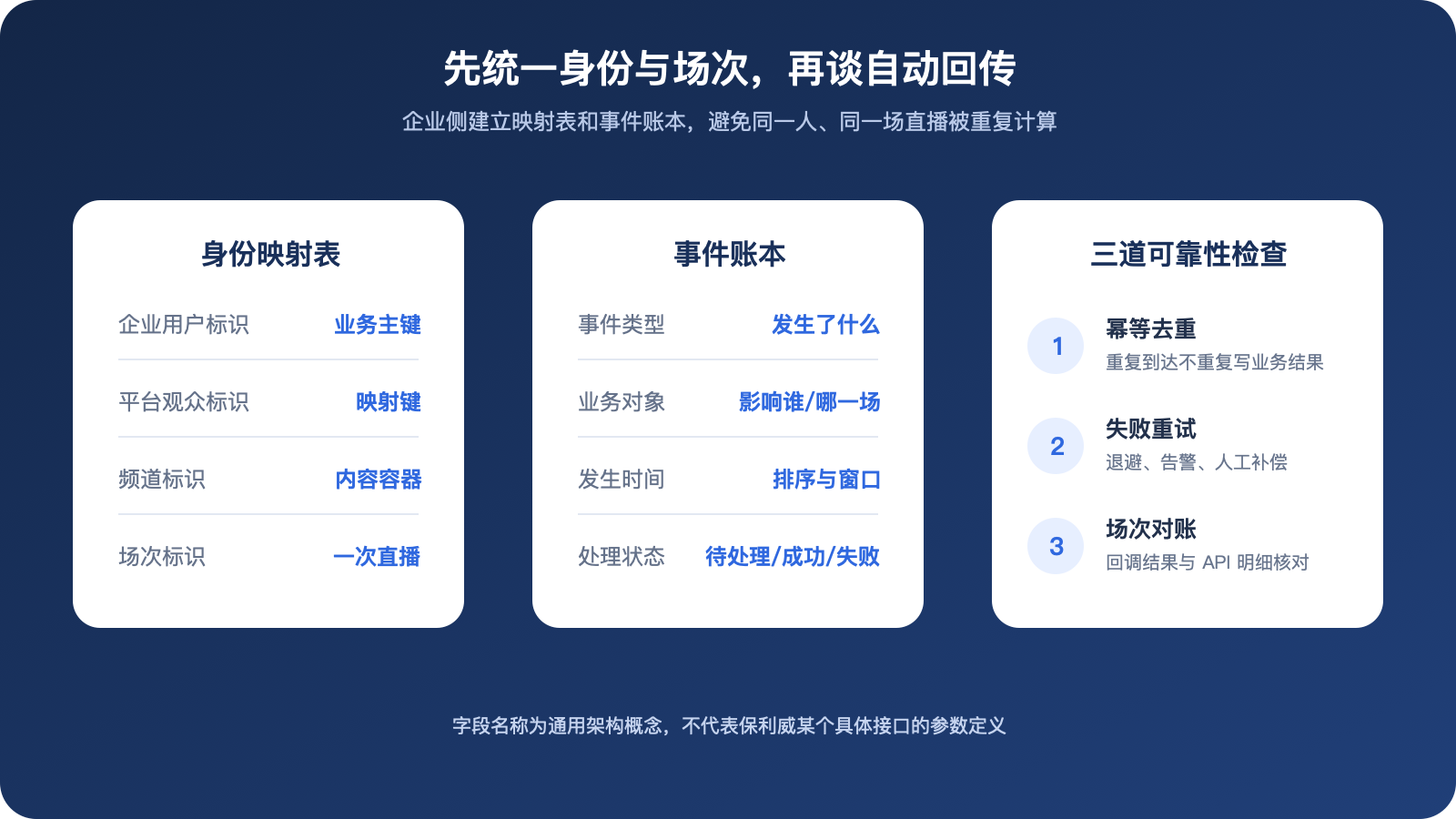
*Figure 1: Companies need to first unify user and session mapping, then write live results into the LMS through idempotency, retry, and reconciliation; Fields represent general architectural concepts and do not represent specific interface parameters of POLYV. *
02 Choose one of three implementation paths based on integration depth
| Integration depth | Page path | Identity and Backing | More suitable for |
|---|---|---|---|
| Lightweight | LMS opens or embeds the mature viewing page | Few parameters and manual management | Rapid piloting, minimal page customization |
| Moderate | Web viewing page SDK or web live streaming player | LMS login mode + server authorization | Maintain brand pages linked to core business |
| Depth | Custom viewing page + server API + callback/data interface | Unified user, channel, session, and learning records | Long-term platform, refined permissions, and data closed-loop |
2.1 Lightweight Path: Embed the mature viewing page first
When the initial goal is for “employees to enter the live stream from the course page and complete basic viewing,” you can start by using a mature viewing page to reduce the development of players, chat rooms, and live streaming pages. The LMS still needs to pass or validate necessary identities and handle returning to the course page, login failures, and exception prompts.
This path is faster to adopt but has limited room for page layout, learning status review, and personalized workflows. It is suitable for validating real business and should not be described as zero development.
2.2 Medium Path: Use the viewing page SDK to keep the live module intact
When you need to retain the player, chat room, instructor–learner audio/video co-hosting, or other common viewing modules, and integrate the page into the existing course interface, you can evaluate the Web Viewing Page SDK. According to the current POLYV Viewing Page SDK Product Introduction, this SDK is used to build custom web viewing pages, including common modules such as players, chat rooms, and instructor–learner audio/video co-hosting; if only screen playback is needed, you can also evaluate the Web Live Player.
The difference is that the viewing page SDK is for full viewing applications, while the player is for purer playback areas. Companies should choose based on whether interactions, announcements, questionnaires, or other modules are needed within the course, rather than redeveloping unnecessary parts just to achieve “deeper integration.”
2.3 Deep Path: Combination of SDK and Server API
When the LMS needs to automatically create courses, assign permissions, synchronize live stream status, and write back learning results, the frontend SDK only handles the page experience, while the enterprise backend still needs to call the server API. Channels, sessions, viewing conditions, user identifiers, and data records must be stably mapped, and exception tasks must be able to retry and reconcile.
The value of deep integration isn’t that more interfaces are better, but that employees only enter the original training portal, administrators operate within a unified process, and learning records can return to the LMS. The specific available interfaces, fields, and activation conditions are subject to the current document and account version implemented.
03 A practical division of responsibilities for LMS live streaming
3.1 The LMS retains business rules
Employees, organizations, positions, courses, learning programs, exams, and certificates are still managed by the LMS. Who can enter which course, when the course expires, and whether records are retained after transfers—these business rules should not be transferred to live streaming players.
3.2 The live streaming platform provides professional video capabilities
The live streaming platform is responsible for video capabilities such as live streaming, viewing, interaction, channels, and sessions, and provides front-end SDKs, server-side APIs, and data entry points. Companies don’t need to start developing their own players for real-time interaction, or large-scale viewing links.
3.3 The enterprise integration layer connects the two systems
The enterprise backend is responsible for user mapping, authorization parameters, course and channel mapping, callback reception, data cleaning, failed retries, and reconciliation. Keys are stored only on the server side; web pages only receive short-term parameters needed to complete the current task.
3.4 Define a Minimum Data Dictionary
The first session should at least define the enterprise user ID, course ID, channel or session ID, entry time, departure time, effective viewing duration, and learning status. Field names and interface returns are based on the current documentation, while the LMS “Done” rules are defined by the enterprise.
04 POLYV’s Positioning in LMS Integration
According to the current POLYV Developer Center, POLYV Live lists integration options such as a Web viewing page SDK, a Web live streaming player, a Web interactive receiver SDK, a live Java SDK, and a server API. The frontend can use either a full viewing page or a pure player as needed, while the backend manages channels, viewers, and data according to enterprise processes.
Make live streaming a capability within your LMS rather than creating a new training portal. POLYV is responsible for the live page module, playback, interaction, and interface capabilities. The company also retains employees, courses, organizations, and learning rules. The current directory of the server API covers channels, views, users, statistics, interactions, chat, replays, and callbacks. However, this does not mean all capabilities are enabled by default or that no development is required. Specific interfaces, data generation timing, account permissions, and acceptance results must be validated against the POLYV Live Streaming Server API and confirmed through project integration testing.
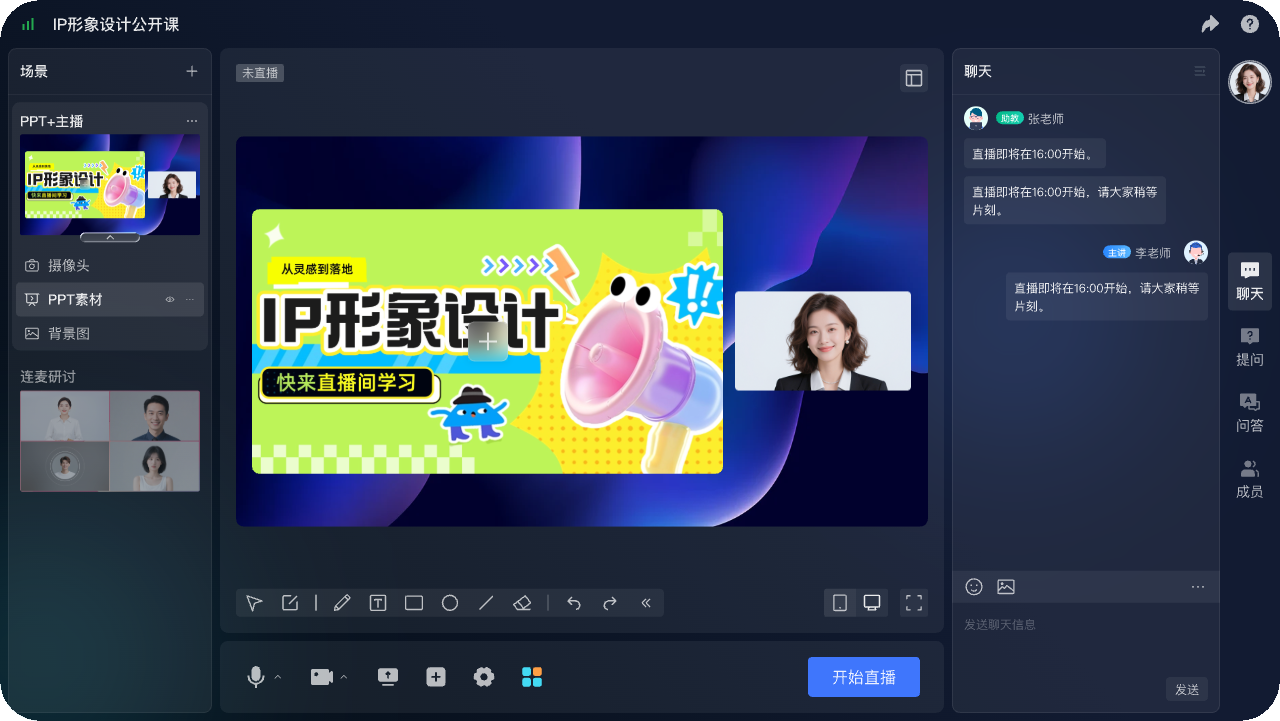
*Figure 2: Schematic of the POLYV Web Live 2.0 online teaching broadcast platform, displaying course titles, courseware, instructors, and classroom interaction entrances; the integration of LMS pages, identities, courses, and data still needs to be integrated by project. Image source: POLYV product interface materials*
05 Use a seven-step POC to validate a production-ready integration
5.1 Choose a real course
Don’t test with blank channels. Choose a course that includes instructors, staff, broadcast times, and learning requirements to surface issues with pages, permissions, and data.
5.2 Fix a set of test identities
At least cover authorized employees, unauthorized employees, course expirations, administrators, and instructors. Check admission, exit, duplicate login, and permission revocation.
5.3 Map the course to a live channel
Record the LMS course IDs, live channel or session IDs, and version relationships. Test whether the mapping remains accurate after postponing, canceling, restarting, and replaying the process.
5.4 Add the viewing entry point
First, employees complete the closed loop of “login—enter—watch—return” from the course page, and then expand interaction and page customization. The clearer the initial path, the easier it is to identify problems.
5.5 Verify a management action
Choose one of the following actions: create a channel, modify the title, or configure viewing conditions. Verify server calls, exception handling, and permission boundaries through testing environments.
5.6 Return one learning result to the LMS
First, define a simple, interpretable completion rule and write test session data back into the LMS. Then, simulations of callback repeat, delay, and interface failure confirm the effectiveness of idempotency and compensation mechanisms.
5.7 Complete security and launch acceptance
Check key storage, log anonymization, access permissions, browser compatibility, peak users, fallback behavior, and support escalation. After POC approval, the scope of courses and organizations can be expanded.
06 Frequently Asked Questions
6.1 Does Using Only iframe Count as LMS Live Streaming Integration?
No. An iframe or page embedding only addresses the display position. Identity authorization, channel management, learning status, and data writeback still need to be designed separately.
6.2 After LMS login, do employees need to sign in to the live room again?
The goal is usually to avoid duplicate logins. However, the enterprise backend must securely map the LMS identity as a live viewer and handle temporary authorizations and invalidations. You cannot put your long-term key in your browser.
6.3 How to Choose Between Web Viewing Page SDK and Web Live Player?
Evaluate the viewing page SDK when you need complete modules such as the player, chat room, and instructor–learner audio/video co-hosting. When only live streaming is needed, you can evaluate the web live player. Ultimately, the selection depends on the current document, page design, and real browser testing.
6.4 Can Viewing Time Directly Equal Training Completion?
It cannot be directly equated. Enterprises should define rules for valid duration, lateness, leaving early, make-up sessions, and abnormal network conditions. Then convert live stream records into LMS learning status.
6.5 How should the integration timeline and cost be estimated?
You need to confirm page paths, account systems, organization and course scale, channel management methods, interactive modules, data standards, interface scope, security requirements, and test environments. When parameters are unclear, first run a POC for one course. This is more reliable than committing directly to a fixed cycle or price.
About POLYV
POLYV is a leading enterprise-grade video SaaS brand, providing cloud live streaming, cloud VOD, and integrable video technology. Targeting enterprise training and LMS integration, POLYV offers Web viewing page SDKs, Web live players, interactive modules, Java SDKs, and server-side APIs to help enterprises integrate live streaming into existing course portals. Employee information, organizations, learning rules, data handling, and launch acceptance are still managed by enterprises through their own systems.