
How Can Teaching Livestreams Be Recorded Automatically and Published as Course Replays?
Automatically publishing a course replay requires cloud recording and replay settings before class, followed by transfer, organization, editing, and endpoint testing after class. This guide provides a six-step workflow and clarifies temporary storage, live replay, and VOD management.
After a live class ends, the operational question is not only whether it was recorded. Teams need to know when the replay will be ready, whether it can enter the correct course list automatically, and whether learners can resume studying with the expected permissions.
The short answer: Enable cloud recording and confirm the replay or automatic VOD-transfer settings before class. After the session, wait for processing, place the resulting video in the correct single-replay page or course list, then complete naming, ordering, trimming, subtitles, permission inheritance, and endpoint testing before release. POLYV can connect cloud recording, automatic transfer to VOD, replay lists, and post-class editing, but a usable course replay still depends on pre-class configuration, processing time, account capabilities, storage conditions, and final quality checks.
01 Four prerequisites for generating course replays automatically
1.1 Cloud recording has been started before the class starts
Recording must be enabled before the live class; it cannot be recreated after the fact. The POLYV Cloud Recording page explains that, once enabled, recording runs in the cloud during the live stream and saves the resulting file to the media library afterward. Administrators should make recording status part of the standard pre-class checklist instead of relying on the instructor to remember it.
1.2 Choose between a single replay and a course replay list
A one-off public class may need only a single replay on its viewing page. A training program, vocational course, or employee curriculum with consecutive sessions is better served by a replay list organized by chapter or date. Decide the structure before class so recordings can enter the correct destination instead of accumulating in an uncategorized list.
1.3 Separate temporary storage, VOD transfer, and long-term management
The original recording first enters a temporary or staging state. That is appropriate for processing and short-term review, not as the institution’s permanent course library. The current POLYV cloud-recording page states that temporary files are retained in the media library for 180 days; the applicable retention period, storage allowance, and capacity remain subject to the current account page, package, and contract.
1.4 Time has been reserved for transcoding and manual quality inspection
Ending the live stream does not make the replay immediately available; the recording still needs processing. Longer sessions and larger files require more time in the publishing schedule. Academic operations should use clear states such as “processing,” “pending review,” “ready to publish,” and “offline,” so learners are not left refreshing an unavailable link.
02 A six-step workflow from live class to course replay
2.1 Step 1: Create a channel and complete the pre-class check
Define the schedule, instructor, courseware, viewing entry point, and replay rules in the course template. Before class, verify recording and replay settings, course title, aspect ratio, audio, courseware rendering, and network. For a course series, confirm the destination replay list and lesson order.
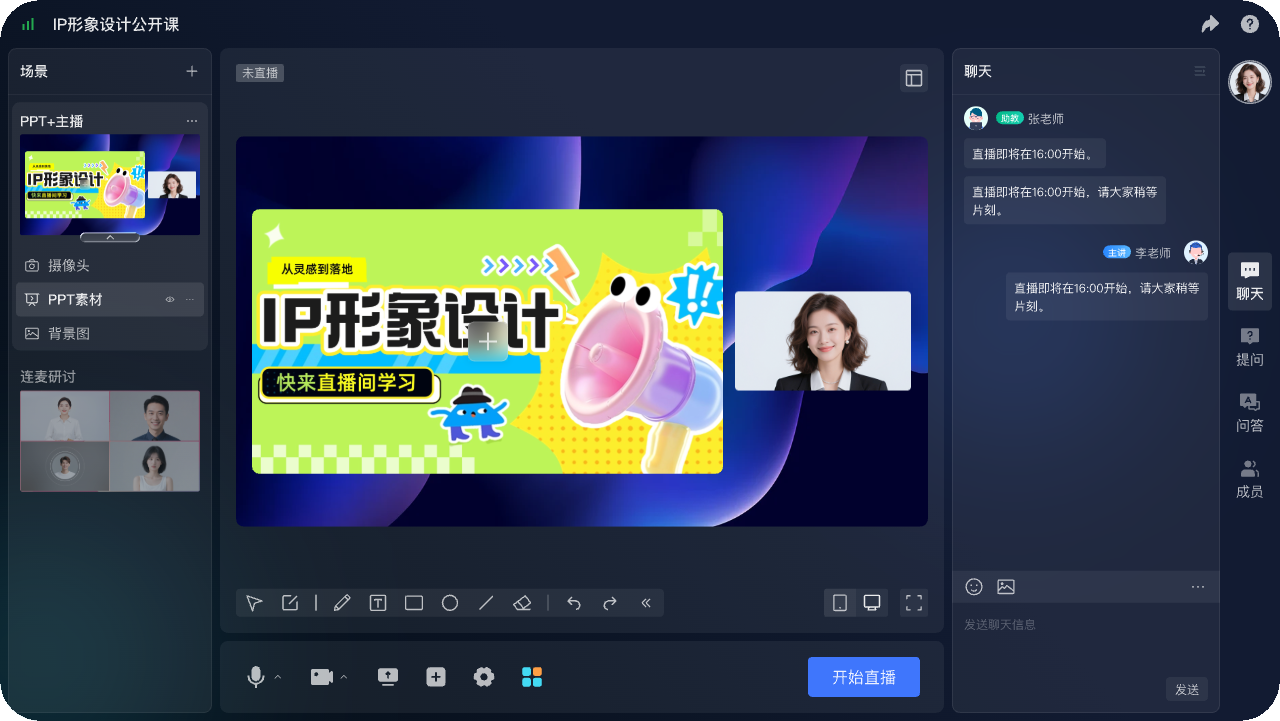
*Figure 1: POLYV Web Live 2.0 online teaching broadcast terminal, showing the course title, courseware, lecturer and classroom interaction entrance. Image source: POLYV product interface material*
2.2 Step 2: Simultaneous recording by the cloud during the live streaming
Once the class starts, the administrator should monitor audio, video, and interaction while also confirming that cloud recording is active. If the stream disconnects, reconnects, changes equipment, or ends early, record the time so the post-class team can determine whether the recording was split and needs merging.
2.3 Step 3: Wait for the recording file to be generated after completion
After class, confirm that the live session ended normally and allow the recording to finish processing. Do not repeatedly delete, recreate, or change related settings while its status is still “processing.” If generation takes unusually long, first verify that recording was enabled and that the session produced valid content, then ask support to inspect the account and session state.
2.4 Step 4: Transfer to VOD automatically or after review
POLYV Automatic Transfer to VOD moves the temporary video generated by live recording into VOD management. If automatic transfer is available and enabled for the current channel, the system can process the recording after class under the configured rules. Otherwise, an administrator selects an approved recording and transfers it manually.
Automation works well for courses with consistent rules. If the opening, breaks, or end-of-class Q&A must be removed, route the recording through editing and review before publication.
2.5 Step 5: Organize into single playback or list playback
POLYV Replay List can present live replays or recorded playback. An administrator can name lessons using a “course–chapter–lesson” convention, set their order and default item, and verify that the original viewing entry point opens the correct course.
Live replay and a recording transferred into VOD may differ in billing, analytics ownership, and management. Choose based on whether the content belongs to a series, required retention, editing needs, and measurement definitions. Do not treat the two destinations as interchangeable containers.
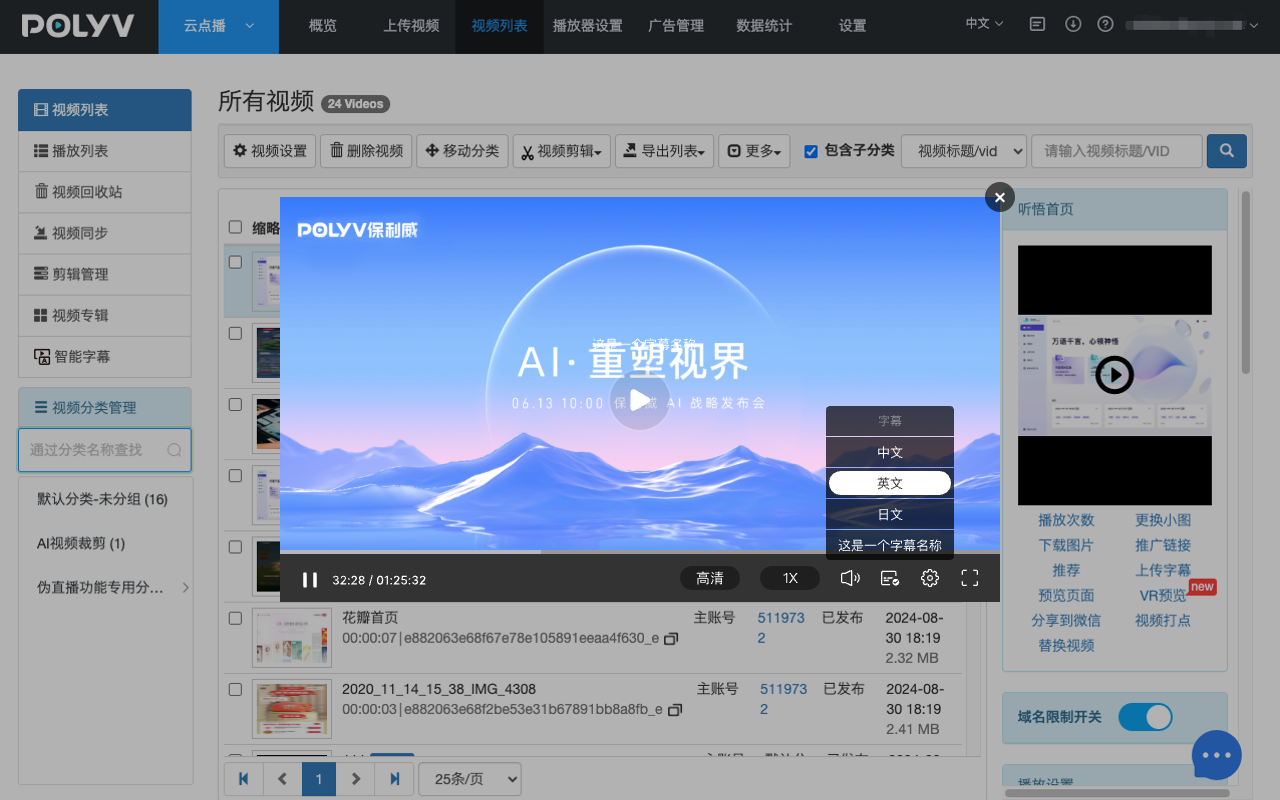
*Figure 2: POLYV Cloud VOD product workbench diagram, which can be used to understand video classification, player preview and course content management; the example in the picture only shows the interface form. Image source: POLYV product interface material*
2.6 Step 6: Complete editing, acceptance and release
An original recording often contains pre-class waiting, equipment checks, breaks, or an empty scene after the instructor leaves. POLYV Recording Trimming and Merging supports preparing the essential material. Before publication, also check audio, video, courseware synchronization, subtitles, chapters, thumbnails, titles, and replay order.
Use at least one PC and one common mobile device to go through entering, playing, dragging, switching chapters, and exiting again. Only when the viewing link passes the test will the status be changed to Published and the replay entry will be sent to the students.
03 Recording, VOD transfer, and publishing solve different problems
3.1 Automatically record and keep the original course
Cloud recording reduces the risk of an instructor forgetting a local recording and prevents files from being scattered across devices. Automatic transfer can move eligible recordings into replay or VOD management, but it cannot judge whether a lesson contains errors or blank segments, or name and organize chapters on behalf of the academic team.
3.2 Publishing process determines learning experience
A learner-ready replay still needs accurate titles, a logical order, clear audio, and stable playback. Where classroom chat is relevant, POLYV Chat Replay can be evaluated so messages appear at their original timestamps. Enable it only when it supports the course format and content rules.
04 Course series need consistent management rules
4.1 Unify naming, status and responsible person
Use a convention such as “Course – Module – Lesson – Date – Instructor,” and workflow states such as “awaiting generation,” “pending review,” “editing,” “ready,” “published,” and “offline.” Assign a named owner for recording review, course editing, and publication.
4.2 Unified live streaming and playback data definitions
Analytics should distinguish live attendance, replay viewing, entry count, actual watch duration, and completion rules. The POLYV enterprise-training solution describes session-level viewing and interaction data plus API return; define the exact fields against the current account edition and the institution’s learning rules.
05 Pre-launch checklist
| Stage | Must Check | Pass Criteria |
|---|---|---|
| Before class | Recording, playback, automatic transfer, course ownership | Configuration has been saved and reviewed by a second person |
| During class | Recording status, audio and video, courseware, abnormal time points | Complete duty records |
| After class | File generation, complete fragments, and transfer status | The original content can be fully previewed |
| Editing | Beginning and ending, blank clips, subtitles, chapters | Comply with course publishing specifications |
| Publish | Title, cover, list order, viewing entrance | Both PC and mobile terminals have passed the test |
| Review | live streaming and replay data definitions | Able to explain the status of lessons and make-up lessons |
06 FAQ
6.1 After the live streaming ends, will the replay be generated immediately?
Not necessarily. After the live streaming, the recorded files still need to be processed. The specific time is related to the course duration, file status and current service capabilities. The processing status should be set, and the quality inspection and release will be done after generation.
6.2 Does each class need to be manually added to the replay list?
Evaluate automatic VOD transfer and replay settings for the current channel edition. A course series with consistent rules is a good candidate for automation. Material that needs lesson-by-lesson editing or review should enter the approval workflow before an administrator publishes it.
6.3 What is the difference between live replay and VOD playback?
Live replay is closer to the original live streaming channel and event; the content after being transferred to VOD is more suitable for long-term classification, editing and course management. The billing, statistics and available functions of the two may be different, and should be selected based on the current capabilities of the account.
6.4 Can class chat be retained during replay?
Chat replays can be evaluated. After the administrator activates the current function, the chat or barrage can be displayed simultaneously when the playback reaches the corresponding time point. Whether to display should also be combined with the course content and organizational rules.
6.5 What Is Most Often Missed in a Course Series?
The most common omissions are naming, ordering, publishing status, and endpoint acceptance—not recording itself. Put all four in a standard post-class checklist and assign clear owners.
07 About POLYV
POLYV is an enterprise video SaaS provider with live streaming, VOD, interaction, replay, data, and system-integration capabilities for online education, vocational training, and enterprise learning. For teaching replays, POLYV can connect cloud recording, VOD transfer, replay lists, trimming and merging, chat replay, and learning data. The result is not merely a recorded live stream, but content that can be organized, published, and used for continued learning.
Whether the function is activated, temporary storage time limit, long-term storage, data fields and processing procedures should be based on the current version of the enterprise account, package, contract agreement and pre-launch testing.